WhatsApp Business Cloud troubleshooting
Some of the errors that you might encounter when using WhatsApp Business Cloud.
Select the Connect a WhatsApp Business app option when creating the connection in Makecreate the connection in Make only if you are already have the WhatsApp Business app installed on your mobile phone.
If your phone number is not yet linked to the WhatsApp Business app on your device, choosing this option will result in an error.
These errors may occur if the phone number you're trying to connect is already linked to another WhatsApp Business Account or business portfolio.
How to fix it?
Open Meta Business Suite.
Check whether this phone number has already been connected under a different business portfolio or WhatsApp account.
If it is connected, either:
- Use the correct portfolio, or
- Remove the existing connection before attempting to connect it again in Make.
This usually happens because a WhatsApp Business Account cannot be managed simultaneously by multiple 'Partners'.
How to fix it?
Open Meta Business Suite.
Go to Settings (gear icon) > Accounts > WhatsApp Accounts.
Select the relevant WhatsApp Business Account.
In the Users section in the left sidebar, click the Partners tab.
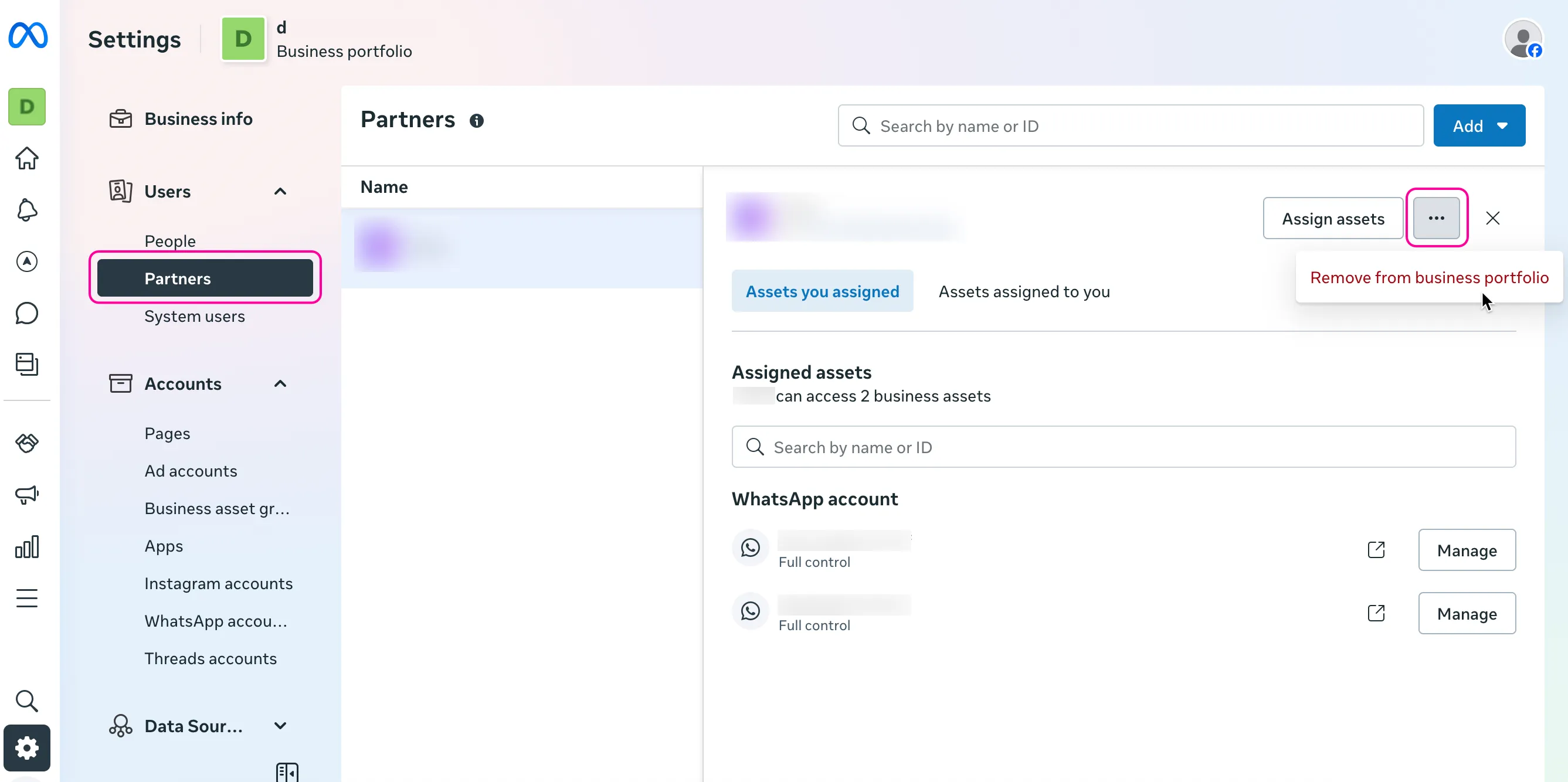
If your WhatsApp account is already connected to other chat platforms and you want to proceed with a Make connection, click the three dots next to the partner, and select Remove from Business portfolio to disconnect it completely.
If the partner still appears in that list, click Manage and remove the access.
The WhatsApp account will stop working with that other platform once you remove the access.
Return to Make, and try to create the connection again.
If you still cannot see your WhatsApp Business account in the dropdown list after following the steps above, you may need to perform a phone number migration. For more details, refer to the Whatsapp Business Platform documentation.
Migrating your phone number to Make as a Solution Partner means the phone number will no longer work on any other platforms where it is currently connected.
How to migrate your number?
In the Make connection flow, select the option Create a WhatsApp Business account.
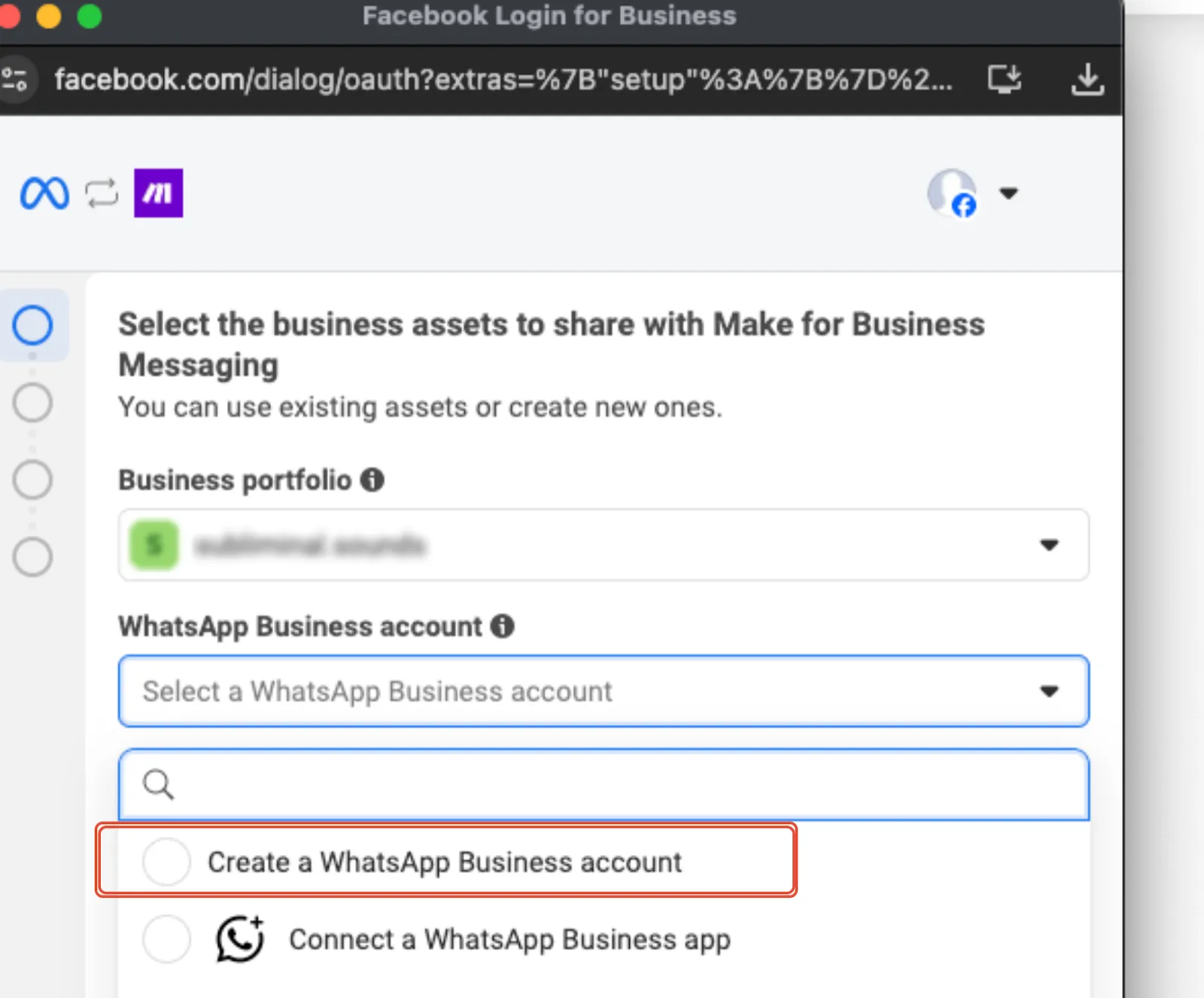
This will lead you to create a new WhatsApp Business Account. We strongly recommend using all the details of your existing WhatsApp Business Account.
Follow the dialog to add the phone number in question. You will need to complete 2FA verification via Text Message or Phone Call.
You will receive a prompt confirming the migration. Follow the on-screen instructions to complete the process.
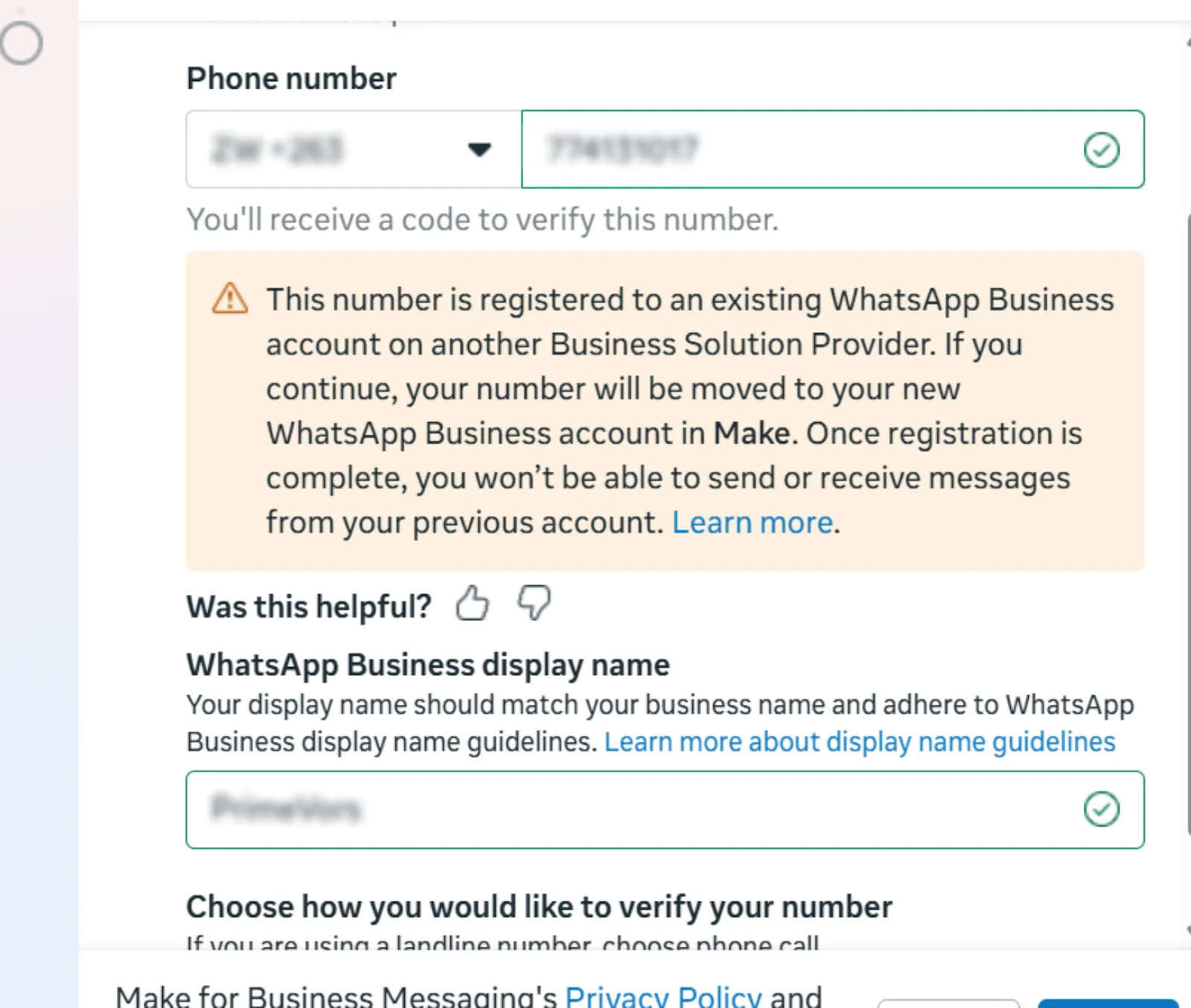
If you complete the process but the connection is not created, it may be due to a timeout. Simply try the process again; it is usually much faster the second time.
What happens to my data?
- Your business phone number, display name, quality rating, messaging limit, and Official Business Account status are all preserved.
- All eligible templates are automatically duplicated and granted the same statuses.
- All media previously uploaded to your business phone number can continue to be used.
This error usually appears when the number you are trying to send a message from is not yet registered in the WhatsApp Cloud API.
How to fix it? Use the Register a Sender module to register your number before sending a message. Once the number is registered, the Send a Message module will work as expected.
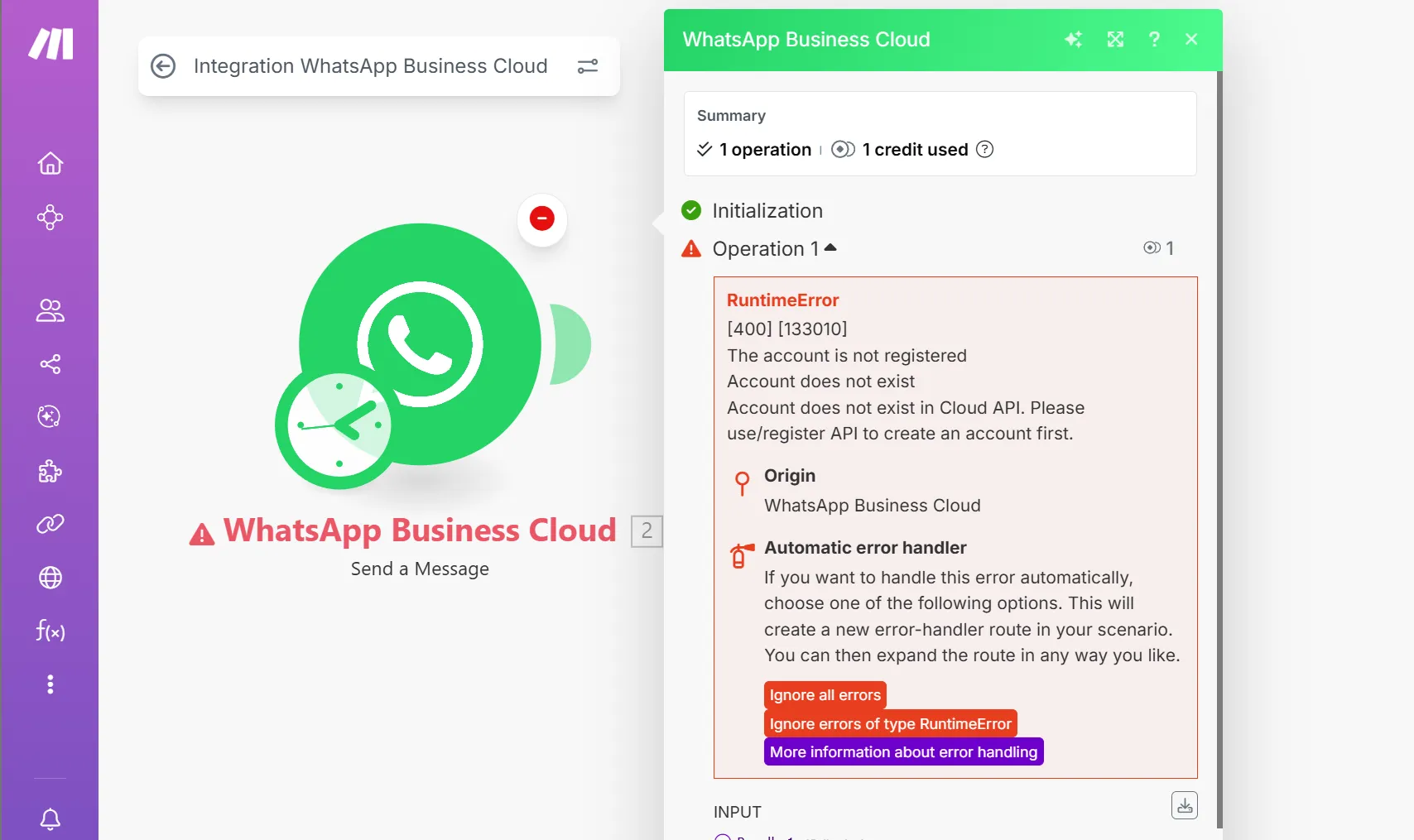
The user gets an error 500 from the module, and the DevTool > Response Body shows error code 131000.
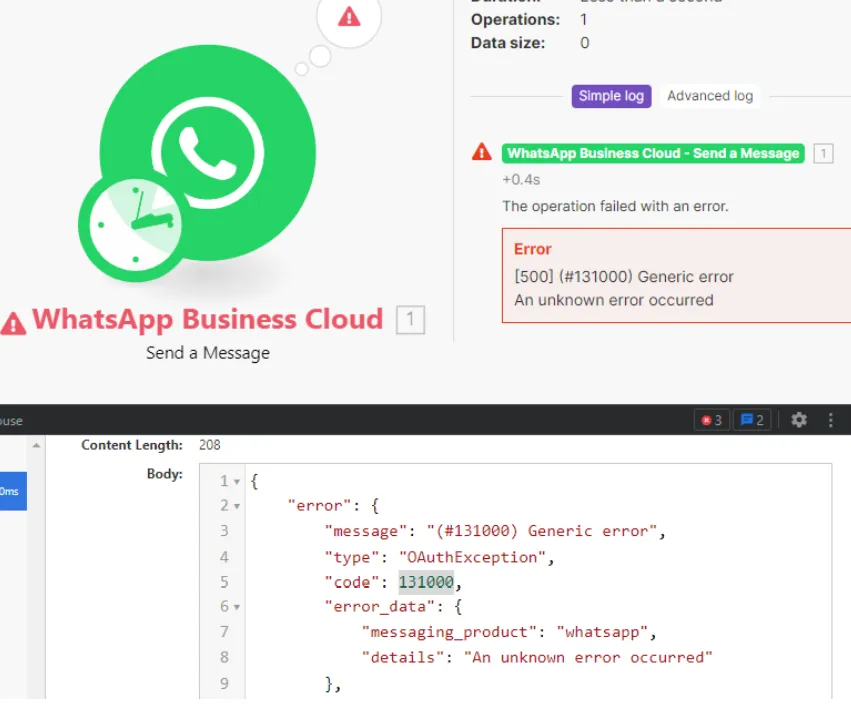
You can only initiate new chats via Send a Template module. Only after sending a templated message to a specific customer and receiving a response from the customer, you can use this Send a Message module to send a non-templated message to the customer.
Error: [400] [100] (#100) Invalid parameter. Cannot Migrate Phone Number: The WhatsApp destination account must have webhooks set up.
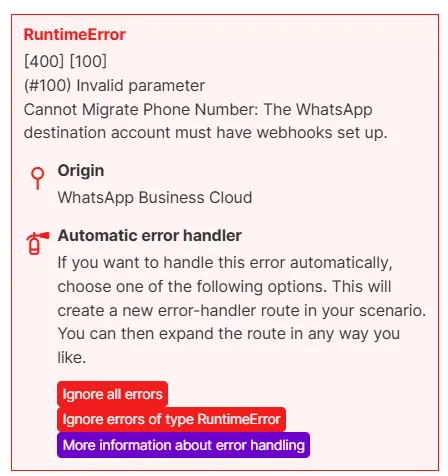
This error occurs during a phone number migration if the destination WhatsApp Business Account does not have an active webhook configuration. Meta requires an active webhook to facilitate the secure transfer of the number.
How to fix it:
In your Make scenario, add a WhatsApp Business Cloud > Watch Events module.
Click Create a webhook and follow the prompts to save it.
Once the webhook is created, return to the connection/migration flow and retry the migration.
Error: Invalid blueprint: Provided account is not compatible with the whatsapp-business-cloud:sendMessage module.
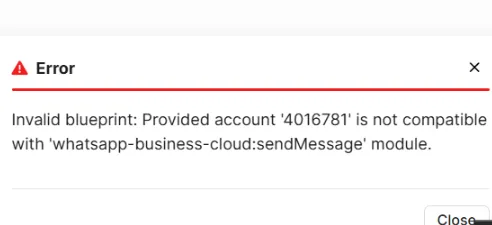
This error typically occurs when you attempt to save a scenario containing a WhatsApp Business Cloud module that is linked to an invalid or outdated connection. It can also happen if the connection was updated but the individual modules in the scenario haven't acknowledged the change.
How to fix it?
Open the configuration of each WhatsApp Business Cloud module in your scenario.
Click the three-dot menu (next to the Connection field) and select Refresh form.
Ensure a valid connection is selected in the dropdown.
Repeat these steps for every WhatsApp module in the scenario.
Save the scenario again.
Error: [400] [100] (#100) Invalid parameter. Cannot Migrate Phone Number: Your WhatsApp Business Account does not have payment method set up.
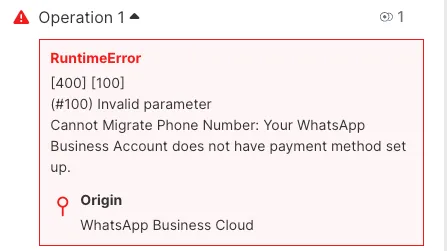
This error occurs during a phone number migration when the destination WhatsApp Business Account lacks a valid payment method. Even if you are within the free tier limits, Meta requires billing information to be configured for the account to be fully active for migration.
How to fix it?
Log in to your Meta Business Suite.
Navigate to All Tools > Billing & payments.
Ensure you have selected the correct Business Account in the dropdown menu.
Under Payment Methods, click Add Payment Method and follow the prompts to link a valid card or account.
Once the payment method is successfully added, return to Make and retry the migration operation.
After adding the payment method, it may take a few minutes for Meta to update the status of your account. If the error persists immediately, wait a short moment and try again.
Error: [400] [100] Invalid parameter. Cannot Create Certificate. Please ensure two-factor authentication is disabled.
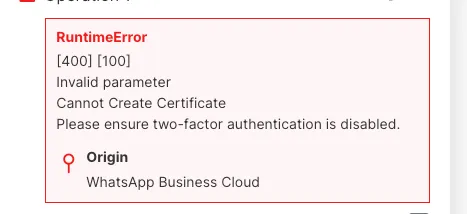
This error occurs when attempting to create a connection or migrate a number that still has Two-step verification enabled within the WhatsApp settings. This security layer prevents Make from generating the necessary security certificate to manage your messages.
How to fix it?
Log in to your Meta Business Suite.
Go to All Tools > WhatsApp Manager.
In the left sidebar, click Phone numbers.
Find the phone number you are trying to connect and click the Settings (gear icon) in the Tools column.
Select Two-step verification.
Click Disable Two-step verification. An email will be sent to the administrator to confirm this action.
Once disabled, return to Make and rerun the connection or migration step.
Error: [400] [133010] (#133010) Account not registered
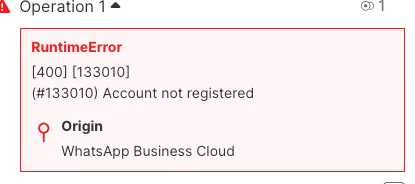
This error occurs when a phone number has been added to your Facebook Business Portfolio but hasn't been officially registered as a sender on the WhatsApp Business Platform. The number is known to Meta but is not yet active for sending or receiving messages through Make.
How to fix it?
In your Make scenario, add the WhatsApp Business Cloud > Register a Sender module.
Select the Connection and the Phone Number ID you are trying to use.
Provide a PIN.
If you don't have an existing PIN, you can create a new one.
Run the module once manually.
After the module runs successfully, your number is fully registered. You can now delete the Register a Sender module and retry your original workflow.