Google Merchant Center
Google Merchant Center is a platform that allows e-commerce businesses to upload and store product data so it can be displayed across Google services like Google Shopping, Google Search, and YouTube.
With the Google Merchant Center app in Make, you can manage the products and product statuses in your Google Merchant Center account.
Requirements
To use the Google Merchant Center app in Make, you must have a Google Merchant Center account.
Connect Google Merchant Center and Make
Currently, you need to use custom credentials to create a connection, as the shared application is still under review by Google.
After creating your connection, you must run the Register a merchant module to enable API access. This process may take up to 5 minutes.
To get started, you must first create a connection between Google Merchant Center and Make, allowing the two services to communicate.
To create the connection, you need to:
Obtain your Client ID and Client secret in Google Merchant Center
Before you create the connection in Make, you should first obtain a Client ID and Client secret in your Google Merchant Center account.
To connect to Make using your own client credentials, you can create and configure a project in the Google Cloud Platform.
Create a Google Cloud Platform project for Google Drive
To create a Google Cloud Platform project:
Log in to the Google Cloud Platform using your Google credentials.
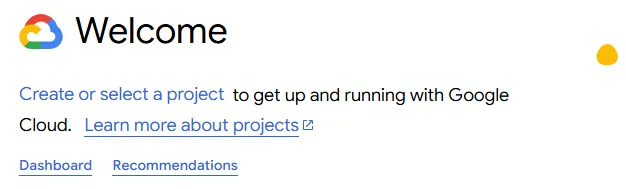
On the welcome page, click Create or select a project > New project. If you already have a project, proceed to the step 5.
Enter a Project name and select the Location for your project.
Click Create.
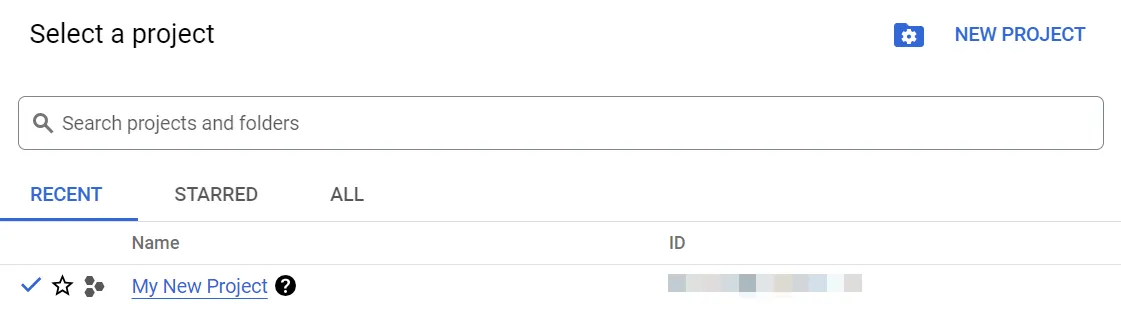
In the top menu, check if your new project is selected in the Select a project dropdown. If not, select the project you just created.
To create a new project or work in the existing one, you need to have the serviceusage.services.enable permission. If you don’t have this permission, ask the Google Cloud Platform Project Owner or Project IAM Admin to grant it to you.
Enable APIs for Google Merchant Center
To enable the required APIs:
Open the left navigation menu and go to APIs & Services > Library.
Search for the following API: Google Merchant Center API.
Click Google Merchant Center API, then click Enable. If you see the Manage button instead of the Enable button, you can proceed to the next step: the API is already enabled.
Configure your OAuth consent screen for Google Merchant Center
To configure your OAuth consent screen:
In the left sidebar of the Google Cloud Platform, click APIs & Services > OAuth consent screen.

Click Get Started.
In the Overview section:
- Under App information, enter Make as the app name, enter your Gmail address, and click Next.

- Under Audience, select External, and click Next. For more information regarding user types, refer to Google's Exceptions to verification requirements documentation.
- Under Contact Information, enter your Gmail address, and click Next.
- Under Finish, agree to the Google API Services User Data Policy, and click Continue, then Create.
- In the next window, click Create OAuth Client.

- You'll be redirected to the Clients tab. You can skip it for now or refer to the Create your client credentials section to configure it.
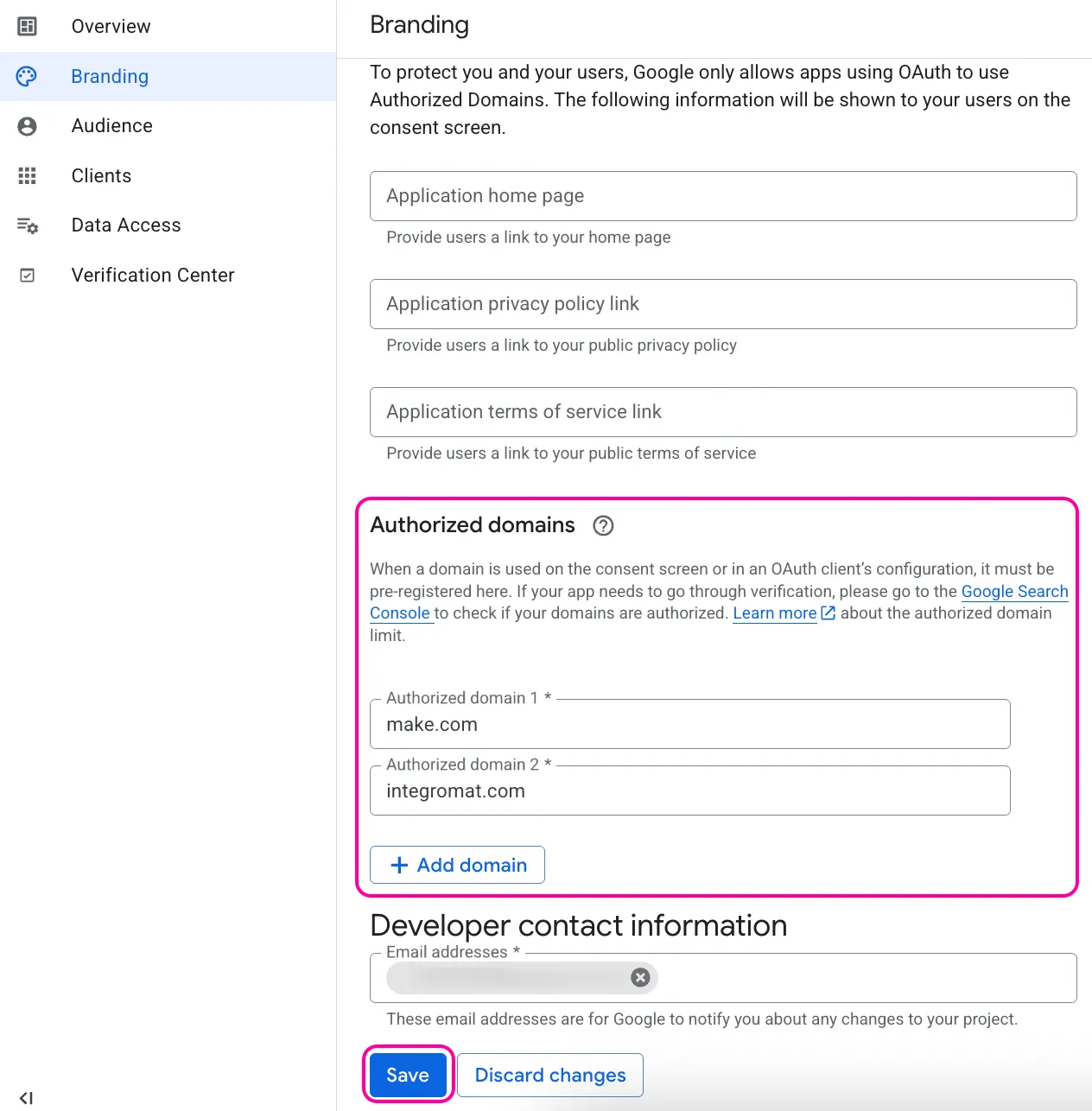
In the Branding section:
- Under Authorized domains, click +Add domain.
- Add make.com and integromat.com.
- Click Save.
Optional: In the Audience section, add your Gmail address on the Test users page, then click Save and continue if you want the project to remain in the Testing publishing status. Read the note below to learn more about the publishing status.

Publishing Status
Testing: If you keep your project in the Testing status, you will be required to reauthorize your connection in Make every week. To avoid weekly reauthorization, update the project status to In production.
In production: If you update your project to the In production status, you will not be required to reauthorize the connection weekly. To update your project's status, go to the Google Auth Platform, the Audience section, and click Publish app. If you see the notice Needs verification, you can choose whether to go through the Google verification process for the app or to connect to your unverified app. Currently connecting to unverified apps works in Make, but we cannot guarantee the Google will allow connections to unverified apps for an indefinite period.
For more information regarding the publishing status, refer to the Publishing status section of Google's Setting up your OAuth consent screen help.
In the Data Access section, click Add or remove scopes, add the following scopes:
- https://www.googleapis.com/auth/content
- https://www.googleapis.com/auth/userinfo.email
You can add scopes using:
- A table with filters
- A window to manually enter scopes:
Click Update.
Click Save.
Create your Google Merchant client credentials
To create your client credentials:
In the left sidebar of the Google Cloud Platform, click APIs & Services > OAuth consent screen.
Go to the Clients section, and click +Create client.

Under Create OAuth client ID:
- In the Application type dropdown, select Web application.
- In the Name field, update the name of your OAuth client. This will help you identify it in the console afterward.
Under the Authorized redirect URIs, click + Add URI and enter the required redirect URI:
Click Create.
Click the OAuth 2.0 Client you created, copy your Client ID and Client secret values, and store them in a safe place.

You will use these values in the Client ID and Client Secret fields when you enable Advanced settings in the Create a connection window in Make.
Create the connection in Make
Once you have your Google Merchant Center Client ID and Client secret, you're ready to create the connection in Make.
To create the connection:
Log in to your Make account, add an Google Merchant Center module to your scenario, and click Create a connection.
If you add a module with an instant tag, click Create a webhook, then Create a connection.
Optional: In the Connection name field, enter a name for the connection.
In the Client ID field, enter the client ID you copied from your Google Merchant Center account.
In the Client secret field, enter your client secret value.
Click Save.
If prompted, authenticate your account and confirm access.
You've successfully created the connection and can now use the Google Merchant Center app in your scenarios. If you want to make changes to your connection in the future, follow the steps here.
When using custom credentials to create a connection, it is important to run Register a merchant module first. That would enable a user to use all other modules.
Google Merchant Center modules
After connecting to the Google Merchant Center app, you can use the following types of modules to build your scenarios.
Templates
You can look for Google Merchant Center templates in Make's template gallery, where you'll find thousands of pre-created scenarios.