OpenAI modules
You can use the following OpenAI (ChatGPT, Whisper) modules to build your scenarios. The Simple text prompt module requires no setup, while other modules require connecting to the OpenAI (ChatGPT, Whisper) app.
If you encounter a 429 error, you've used all credits in your OpenAI account or exceeded your monthly OpenAI budget. To adjust your billing, see the OpenAI billing settings.
Get started
On Free plans and trials, the Simple text prompt module supports only the GPT-5 nano model. To use other models, upgrade to a paid plan.
Generates a response based on a simple text prompt.
The Simple text prompt module allows you to select a model and enter your prompt, with no other setup required.
Field | Description |
|---|---|
Model | Select the model that will generate the response. |
Text prompt | Enter text or instructions to generate the response. |
The module uses credits based on the amount of input and output tokens consumed in each run. Input tokens depend on the prompt you enter, and output tokens are based on the response. After each run, you can see how many tokens were used in the module's output.
This table shows how input and output tokens for OpenAI models convert to credits:
Model name | Input tokens per credit | Output tokens per credit |
|---|---|---|
GPT-6.1 Sol with over 272,000-token context | 226 | 6 |
GPT-6.1 Sol | 452 | 90 |
GPT-6 Sol with over 272,000-token context | 226 | 181 |
GPT-6 Sol | 452 | 90 |
GPT-6 Luna with over 272,000-token context | 4520 | 3616 |
GPT-6 Luna | 9040 | 1808 |
GPT 6 - Astra | 90 | 18 |
GPT-5.6 Sol with over 272,000-token context | 90 | 20 |
GPT-5.6 Sol | 181 | 30 |
GPT-5.6 Terra with over 272,000-token context | 226 | 50 |
GPT-5.6 Terra | 452 | 75 |
GPT-5.6 Luna with over 272,000-token context | 2260 | 502 |
GPT-5.6 Luna | 4520 | 753 |
GPT-5.5 | 181 | 30 |
GPT-5.4 | 181 | 40 |
GPT-5.4 nano | 4520 | 723 |
GPT-5.4 mini | 1205 | 201 |
GPT-5.4 with over 272,000-token context | 181 | 40 |
GPT-5.4 with up to 272,000-token context | 361 | 60 |
GPT-5.2 | 516 | 64 |
GPT-5.1 | 723 | 90 |
GPT-5 | 723 | 90 |
GPT-5 nano | 18080 | 2260 |
GPT-5 mini | 3616 | 452 |
Responses and Conversations
Generates a response.
Field | Description |
|---|---|
Connection | |
Model | Select the model that will generate the response. |
Prompt Type | Use the default Text prompt or choose another prompt type for the response:
|
Reusable Prompt Definition ID | You can create and manage your prompts here. To copy the ID of the selected prompt, click the three-dots menu in the top-center and click the prompt ID. |
Max Output Tokens | Enter the upper limit for the number of tokens that can be generated for the response, including visible output tokens and reasoning tokens. |
Tools | Add one or more tools that the model may call while generating a response.
|
Tool Choice | Select how the model should choose tools during response generation:
If not selected, the default value is Auto. |
Parallel Tool Calls | Select whether the model can run tool calls in parallel. Defaults to Yes. |
Run in Background | Select if the query should run in the background, performed asynchronously. This is recommended for long, research-heavy requests that may exceed time limits. |
Context management | Configure how the model's context is managed, for example, compaction to control token usage when conversations grow long. Context entry type: Select how the context should be managed. Compact threshold: Enter the token limit that triggers context compaction. When the number of tokens in the context exceeds this value, the module compacts the context to reduce token usage. For more information, see OpenAI compaction guide. |
Conversation ID | Provide a conversation ID for the model to generate a response within the context of that conversation, without you having to specify all previous messages (items). |
Create a new conversation | Select Yes if you don't provide a Conversation ID in the field above. A new conversation will be created automatically, and its ID will be output. |
Temperature | Enter the sampling temperature to use. Higher values like 0.8 will make the output more random, while lower values like 0.2 will make it more focused and deterministic. We generally recommend altering this or Top P but not both. Must be lower than or equal to 2. |
Top P | Enter the nucleus sampling value, which is an alternative to sampling with temperature. This considers the results of the tokens with Top P probability mass. The value 0.1 means only the tokens comprising the top 10% probability mass are considered. |
Store | Select whether to store the generated model response for later retrieval via API. Defaults to Yes. |
Previous Response ID | Enter the ID of the previous response to the module. |
Instructions | Enter a system (or developer) message as the first item in the model's context. When using along with Previous Response ID, the instructions from a previous response will not be carried over to the next response. |
Reasoning | Effort - Select how to model performs reasoning. Reducing reasoning effort can result in faster responses and fewer tokens used on reasoning in a response. Summary - Select the summary of the reasoning performed by the model. |
Output Format | Type - Select the format that the module must output
The type of response format being defined. When JSON object is selected as the output format, the prompt must include the word json. |
Truncation | Select the truncation strategy to use for the model response.
|
Include | Select additional output data to include in the model response. |
Metadata | Add key-value pairs that can be attached to an object. |
Lists input items.
Field | Description |
|---|---|
Connection | |
Response ID | Enter the ID of the response that you want to list the input items for. |
Include | Select the additional output data to include in the response. |
Order | Select the order to return the input items in. |
Limit | Enter the maximum number of returned results (bundles). |
Retrieves an existing model response.
Field | Description |
|---|---|
Connection | |
Response ID | Enter the ID of the response that you want to retrieve the model response for. |
Deletes an existing model response.
Field | Description |
|---|---|
Connection | |
Response ID | Enter the ID of the response that you want to delete the model response for. |
Chat and Assistant
Generates a chat completion.
See the OpenAI model endpoint compatibility section for the list of supported models.
Field | Description |
|---|---|
Connection | |
Select Method | Select a method to create a completion. |
Model | Select or map the model you want to use. Note: Ensure you have access to the model you want to work with. Only models available for the account are listed for selection. |
Messages | Add the messages for which you want to create the completion by selecting the Role and entering the Message Content. For some models, you can manage image input type and image details as well as audio filename and audio data. For more information about chat completion, refer to the OpenAI documentation. |
Response Format | Choose the format for the response. When using JSON Object, you must also instruct the model to produce JSON via a System or User message. If not, the model can generate an unending stream of whitespace until it reaches the token limit. This will result in a long-running and seemingly "stuck" request. |
Reasoning Effort | Constrain the effort on reasoning for reasoning models by selecting low, medium, or high. Reducing the reasoning effort can result in faster responses and fewer tokens used on reasoning in a response. Defaults to medium. |
Max Output Tokens | The maximum number of tokens to generate in the completion. The default value is 2048. Note: Low values may cause the output to be truncated. High values may use a lot of OpenAI credit. The o1 and o3 models require tokens for both output and reason. Insert the sum of both tokens if you use the o1 and o3 models. Refer to OpenAI Platform documentation to learn more about reasoning modules. |
Temperature | Specify the sampling temperature to use. A higher value means the model will take more risks. Try 0.9 for more creative applications and 0 (argmax sampling) for ones with a well-defined answer. Defaults to 1. |
Top P | An alternative to sampling with temperature is called nucleus sampling, where the model considers the results of the tokens with top_p probability mass. So 0.1 means only the tokens comprising the top 10% probability mass are considered. Defaults to 1. |
Number | The number of completions to generate for each prompt. Defaults to 1. |
Frequency Penalty | Positive values penalize new tokens based on their existing frequency in the text so far, decreasing the model's likelihood to repeat the same line verbatim. This value must be a number between -2 and 2. |
Presence Penalty | Positive values penalize new tokens based on whether they appear in the text so far, increasing the model's likelihood to talk about new topics. This value must be a number between -2 and 2. |
Token Probability | Add the token probability by selecting the Token and Probability. The Probability must be a number between -100 and 100. |
Seed | This feature is in Beta. If specified, OpenAI will make a best effort to sample deterministically, such that repeated requests with the same seed and parameters should return the same result. Refer to the system_fingerprint response parameter to monitor changes in the backend. For more information, refer to the OpenAI documentation. |
Tool Choice | Select your tool choice:
|
Tools (functions) | If you select Auto or Required for Tool Choice, click + Add tool and enter the following:
|
Stop Sequences | Add up to 4 sequences where the API will stop generating further tokens. |
Other Input Parameters | Add any additional input parameters by selecting the Parameter Name, the Input Type, and entering the Parameter Value. For more information, refer to the OpenAI documentation. |
Qualifies whether the provided image or text(s) contain violent, hateful, illicit, or adult content.
Field | Description |
|---|---|
Connection | |
Input format | Select the format of the input content:
|
Input text | Enter the text for which you want to create the moderation. The module will classify the content against OpenAI's Content Policy. |
Model | Select or map the model you want to use. If empty, the default model will change based on the selected input format. |
Files
Adds files to a specified vector store or, if not specified, creates a new vector store based on the configuration.
Field | Description |
|---|---|
Connection | |
Batch Create Mode | Choose if you would like to create a new vector store or choose an existing vector store. |
Vector Store ID | Select the vector store. |
Vector Store Name | Enter a name for a new vector store. |
Days Expires After | Enter the number of days of inactivity for the vector store. When the specified amount of days have passed, the vector store expires. |
File IDs | Select the files to add to a vector store. For a list of supported file formats, see Open AI File Search supported files. |
Uploads a file that will be available for further usage across the OpenAI platform.
Field | Description |
|---|---|
Connection | |
File Name | Enter the name of the file to be uploaded, including the file extension. For example, myFile.png. Supported file types depend on the option selected in the Purpose field below. The Fine Tune purpose supports only .jsonl files. Assistants supports file types found in the OpenAI Assistants Tools guide. Vision supports .jpeg, .jpg, .png, .gif, .webp files. Batch supports only .jsonl. |
File Data | Enter the file data to be uploaded. You can retrieve file data using the HTTP: Get a file module. |
Purpose | For Assistants and Messages select Assistant. For Fine-tuning, select Fine Tune. For Assistants image file inputs, select Vision. For uploading batches, select Batch. |
Downloads a file from a container.
Field | Description |
|---|---|
Connection | |
Container ID | Enter (map) the ID of the container. For example, you can find this ID in the output of the Create a model response module, when using a code interpreter tool that produces a image file as output. Example Container ID: cntr_687539c204348198b213bd1fa33c82090ebad0602fa |
File ID | Enter (map) the ID of the file. For example, you can find this IDs in the output of the Create a model response module, when using a code interpreter tool that produces a image file as output. Example File ID: cfile_687539c9229081919afea08bc8ad1480 |
Vector Stores
Creates a new vector store and optionally adds files to it, or adds files to an existing vector store.
Field | Description |
|---|---|
Connection | Create a connection to your OpenAI account.Create a connection to your OpenAI account. |
Batch create mode | Choose whether to create a batch on an existing vector store or on a new one. |
Vector store ID | Select or map the vector store to add files to. Appears when you select Choose vector store in Batch create mode. |
Vector store name | Enter a name for the new vector store. Appears when you select Create vector store in Batch create mode. |
Days expires after | Enter the number of days of inactivity after which the vector store expires. Appears when you select Create vector store in Batch create mode. |
File IDs | Select the files to add to the vector store. For supported file formats, see OpenAI File Search supported files. |
Chunking strategy | Select how the added files are split into chunks. Applies only when you add files. Defaults to Auto, which uses a chunk size of 800 tokens with a 400-token overlap. |
Returns a list of vector stores.
Field | Description |
|---|---|
Connection | Create a connection to your OpenAI account.Create a connection to your OpenAI account. |
Sort order | Select the order to return the vector stores in, sorted by their creation time. |
Limit | Enter the maximum number of results to return and work with in one execution cycle. Ranges between 1 and 100, and defaults to 20. |
Searches a vector store and returns the file content chunks that match your query.
Field | Description |
|---|---|
Connection | Create a connection to your OpenAI account.Create a connection to your OpenAI account. |
Vector store ID | Select or map the vector store you want to search. |
Queries | Enter a natural-language search phrase, for example, What is our refund policy for annual plans? Add more queries to run several searches at once. Each query returns its own set of matching chunks in the output. |
Filter | Restrict the search to files whose custom attributes match the criteria you enter. Attributes are key/value metadata attached to files in the vector store on OpenAI's side. |
Rewrite query | Select Yes to let OpenAI rephrase your query for better semantic-search results. Useful for full-sentence or conversational queries. The rewritten text appears in the module's Search query output. |
Ranking options | Ranker enables re-ranking. Choose Auto to use the latest ranker, a specific ranker version (for example, default-2024-11-15), or None to disable re-ranking. |
Limit | Enter the maximum number of results to return and work with in one execution cycle. Ranges between 1 and 50. |
Deletes a vector store.
Field | Description |
|---|---|
Connection | Create a connection in your OpenAI account.Create a connection to your OpenAI account. |
Vector store ID | Select the vector store you want to delete, or map its ID. Deleting a vector store also removes it from any assistant or response that uses it. |
Embeddings
Creates an embedding vector representing the input text.
Field | Description |
|---|---|
Connection | Create a connection in your OpenAI account.Create a connection to your OpenAI account. |
Model | Select or map the model you want to use to generate the embedding. |
Input type | Select whether to turn a single text or multiple texts into embeddings in one request. |
Text | Enter the text to turn into an embedding. Can't be empty or exceed 8192 tokens. |
Dimensions | Enter the number of dimensions for the resulting embedding. Must be higher than or equal to 1. Supported only in text-embedding-3 and later models. Lower values reduce cost and meet vector database limits. If left empty, the model default is used: 1536 for text-embedding-3-small and 3072 for text-embedding-3-large. |
Encoding format | Select the format of the returned embeddings. Float is an array of numbers, and Base64 is a base64-encoded string. |
User ID | Enter a unique identifier for your end user to help OpenAI monitor and detect abuse. For details, see OpenAI Safety best practices. |
Images
Generates images using GPT Image.
Field | Description |
|---|---|
Connection | |
Model | Select or map the model you want to use:
Note: Ensure you have access to the model you want to work with. Only models available for the account are listed for selection. |
Prompt | Enter details of the images you want to generate. |
Size | Select or map the size of the images to generate. It must be one of the available options:
Note: If you select GPT-Image-2.5 Flare GPT-Image-2.5 Sunburst, Size is a text field. |
Quality | Select the image quality:
If not selected, defaults to Auto. |
Quality | Select the quality of the generated image. HD generates images with finer details and greater consistency across the image. |
Background | Select the background:
If not selected, defaults to Auto. When using the Transparent option, the Output Format must allow transparency (webp or png). |
Output Format | Select the output format:
If not selected, defaults to PNG. |
Number | Enter the number of images to generate. Enter a number between 1 and 10. |
Moderation | Select the content-moderation level:
If not selected, defaults to Auto. A Low option provides a weaker (less restrictive) content filter. |
Style | Select the style:
|
Response Format | Select or map the format in which the generated images are returned. If you select Base64-encoded, the raw PNG image can be obtained by using the IML function, toBinary(<module_no>.data[].b64_json; base64) in the subsequent modules. |
Accepts an array of images as an input and provides an analysis result for each of the images following the instructions specified in the prompt.
Field | Description |
|---|---|
Connection | |
Prompt | Enter instructions for how to analyze the image(s). |
Images | Add or map the images you want to analyze. You can add images by entering an Image URL or Image file data. Image URL: Enter the URL address to a public resource of the image. For example, https://getmyimage.com/myimage.png. Image file: Map or select the binary data of the image. You can retrieve the binary data of an image using the HTTP: Get a file module, or another app such as Dropbox. |
Model | Select or map the model you want to use. Note: Ensure you have access to the model you want to work with. Only models available for the account are listed for selection. |
Max Completion Tokens | Enter the maximum number of tokens to use for the completion. The default value is 2048. |
Temperature | Specify the sampling temperature to use. Higher temperatures generate more diverse and creative responses. For example, 0.8. Lower temperatures generate more focused and well-defined responses. For example, 0.2. The default value is 1. The value must be lower than or equal to 2. |
Top P | Specify the Top P value to use nucleus sampling. This will consider the results of the tokens with probability mass. The default value is 1. The value must be lower than or equal to 1. |
Number | Enter the number of responses to generate. If more than 1 response is generated, the results can be found in the module's output within Choices. The default value is 1. |
Creates an edited or extended image given one or more source images and a prompt.
Field | Description |
|---|---|
Connection | |
Model | Select or map the model you want to use:
Note: Ensure you have access to the model you want to work with. Only models available for the account are listed for selection. |
Images | Enter an image to edit. GPT Image models: Each image must be in PNG, WEBP or JPEG/JPG format, less than 25 MB. |
Prompt | Enter details of the images you want to edit. The maximum number of characters allowed for GPT Image models is 32000. |
Quality | Select the image quality:
If not selected, defaults to Auto. |
Size | Select or map the size of the images to generate. It must be one of the three options:
Note: If you select GPT-Image-2.5 Flare GPT-Image-2.5 Sunburst, Size is a text field. |
Background | Select the background:
If not selected, defaults to Auto. When using the Transparent option, the Output Format must allow transparency (webp or png). |
Output Format | Select the output format:
If not selected, defaults to PNG. |
Input Fidelity | Select how much effort the model will exert to match the style and features, especially facial features, of input images:
If not selected, defaults to Low. |
Mask | Enter an additional image with fully transparent areas (where alpha is zero). The transparent areas indicate where the Image will be edited. The file must be in PNG format, less than 4 MB, and the same dimensions as the Image you've entered. |
Number | Enter the number of images to generate. Enter a number between 1 and 10. |
Response Format | Select or map the format in which the generated images are returned. If you select Base64-encoded PNG, the raw PNG image can be obtained by using the IML function, toBinary(<module_no>.data[].b64_json; base64) in the subsequent modules. |
Audio
Generates an audio file based on the text input and settings.
Field | Description |
|---|---|
Connection | |
Input | Enter text to generate into audio. The text must be between 1 and 4096 characters long. |
Model | Select or map the model you want to use. Refer to the OpenAI Audio API documentation for information on available models. Note: Ensure you have access to the model you want to work with. Only models available for the account are listed for selection. |
Voice | Select or map the voice to use in the audio. For voice samples, see the OpenAI Voice Options guide. |
Output Filename | Enter a name for the generated audio file. Do not include the file extension. |
Response Format | Select or map the file format for the generated audio file. |
Speed | Enter a value for the speed of the audio. This must be a number between 0.25 and 4. |
Transcribes an audio to text.
Field | Description |
|---|---|
Connection | |
File Name | Enter the name of the file you want to transcribe. |
File Data | Enter the data of the file you want to transcribe. |
Model | Select or map the model you want to use. Refer to the OpenAI Audio API documentation for information on available models. Note: Ensure you have access to the model you want to work with. Only models available for the account are listed for selection. |
Chunking Strategy | This field appears if you select the following model in the Generate a transcription module: gpt-4o-transcribe-diarize Select how the module splits longer audio files into smaller parts before transcription. Choose Auto to apply recommended settings, or Custom to define your own chunking parameters. This parameter must be provided if the input audio is longer than 30 seconds. |
Chunking Strategy Settings | These fields appear when you select Custom in the Chunking Strategy field. Use them to control how the module detects speech and divides the audio before transcription. Prefix Padding: Enter the amount of audio to include before speech detection (in milliseconds). Maximum value is 10000. Silence Duration: Enter how long silence must last before the module detects that speech has stopped (in milliseconds). Maximum value is 10000. Thresold: Enter the sensitivity level for voice activity detection. Higher values require louder audio for the model to detect speech. Maximum value is 1. |
Prompt | Enter text to guide the model's style or continue a previous audio segment. (Optional) The prompt should be in the same language as the audio. |
Temperature | Enter a sampling temperature between 0 and 1. Higher values, such as 0.8, will make the output more random. Lower values, such as 0.2, will make it more focused and deterministic. |
Language | Enter the two letter ISO code of the input audio's language. |
Translates an audio into English.
Field | Description |
|---|---|
Connection | |
File Name | Enter the name of the file you want to translate. |
File Data | Enter the data of the file you want to translate. |
Model | Select or map the model you want to use. Refer to the OpenAI Audio API documentation for information on available models. Note: Ensure you have access to the model you want to work with. Only models available for the account are listed for selection. |
Prompt | Enter text to guide the model's style or continue a previous audio segment. (Optional) The prompt should be in English. |
Temperature | Enter a sampling temperature between 0 and 1. Higher values, such as 0.8, will make the output more random. Lower values, such as 0.2, will make it more focused and deterministic. |
Skills
When creating a new skill or version, it may not be immediately available. If you use the new ID in a subsequent module, consider adding a Tools > Sleep module to allow time for provisioning.
Returns a list of skills.
Field | Description |
|---|---|
Connection | |
Order | Select how to sort the results by timestamp.
|
Limit | Enter the maximum number of results to return during one execution cycle. |
Returns information about a specific skill by its ID.
Field | Description |
|---|---|
Connection | |
Skill ID | Enter the ID of the skill you want to retrieve. |
Downloads a skill as a ZIP file using its ID.
Field | Description |
|---|---|
Connection | |
Skill ID | Enter the ID of the skill you want to download. |
Creates a new skill.
Field | Description |
|---|---|
Connection | |
File | Select a file that contains the skill data from a previous module or switch to Map to provide your file. This file is used to create the skill. |
File name | Enter the name of the file that defines the skill. For example, skill.zip. |
File data | Enter the file data that contains the skill definition. The file must include a SKILL.md file at the root. For details about Skill structure, see OpenAI Skills overview. |
Updates the default version pointer for a skill.
Field | Description |
|---|---|
Connection | |
Skill ID | Enter the ID of the skill whose default version you want to update. |
Default version | Enter the version ID you want to set as the default. This version will be used when the skill is called without specifying a version. |
Deletes a skill. This action cannot be undone.
Field | Description |
|---|---|
Connection | |
Skill ID | Enter the ID of the skill you want to delete. This removes the skill so it can no longer be used in your scenario. |
Skills Versions
Returns a list of skill versions.
Field | Description |
|---|---|
Connection | |
Skill ID | Enter the ID of the skill whose versions you want to retrieve. |
Order | Select how to sort the results by timestamp.
|
Limit | Enter the maximum number of versions to return during one execution cycle. |
Returns information about a specific skill version.
Field | Description |
|---|---|
Connection | |
Skill ID | Enter the ID of the skill whose version you want to retrieve. |
Version | Enter the version ID you want to retrieve. This returns the configuration of that specific version so you can use it in your scenario. |
Downloads a skill version as a ZIP file.
Field | Description |
|---|---|
Connection | |
Skill ID | Enter the ID of the skill whose version you want to download. |
Version | Enter the version ID you want to download.This returns the file for that specific version. |
Creates a new immutable skill version.
Field | Description |
|---|---|
Connection | |
Skill ID | Enter the ID of the skill you want to add a new version to. |
File | Select the file that contains the skill version data. You can use the output of the previous module, or switch to Map. |
Set as default version | Select whether to set the new version as the skill’s default version. If you select Yes, OpenAI uses this version when the skill is called without a specific version. |
Deletes a skill version. This action cannot be undone.
Field | Description |
|---|---|
Connection | |
Skill ID | Enter the ID of the skill that contains the version you want to delete. |
Version | Enter the version ID you want to delete. This removes the version so it can no longer be used. |
Batches
If you're using restricted permissions for your API key, enable the files:read permission in the OpenAI API Platform. This is a required permission for Batch modules.
Triggers when a batch is completed.
Field | Description |
|---|---|
Connection | |
Limit | Enter the maximum number of results to be worked with during one execution cycle. |
Retrieves a list of batches.
Field | Description |
|---|---|
Connection | |
Limit | Enter the maximum number of returned results (bundles). |
Retrieves details of the specified batch.
Field | Description |
|---|---|
Connection | |
Batch ID | Retrieves details of the specified batch. |
Creates and executes a batch of API calls.
Field | Description |
|---|---|
Connection | |
Input File ID | Select a file to use as input to create a batch. |
Endpoint | Select the endpoint to use for all requests in the batch. Note that /v1/embeddings batches are also restricted to a maximum of 50,000 embedding inputs across all requests in the batch. |
Cancels an in-progress batch. The batch will be in status "cancelling" for up to 10 minutes before changing to "cancelled", where it will have partial results (if any) available in the output file.
Field | Description |
|---|---|
Connection | |
Batch ID | Select a batch to cancel. |
Other
Identifies specified information in a prompt's raw text and returns it as structured data.
Field | Description |
|---|---|
Connection | |
Model | Select or map the model you want to use. Note: Ensure you have access to the model you want to work with. Only models available for the account are listed for selection. |
Text to Parse | Enter the text containing the data that you want to transform. |
Prompt | Enter a short description explaining what type of data should be extracted from the text entered above. |
Structured Data Definition | Enter parameters or map the way in which the structured data should be returned.
Enter a name for the parameter. Adhere to the following rules:
Enter a short description of the parameter. This description is part of the prompt, so the more clear your description, the more accurate the response. For example, if you would like OpenAI to search for coordinates in the text, you can enter Latitude and Longitude of the location.
Select or map the data type format in which the parameter is returned. If there will be multiple occurrences of similar data types, select an Array option. For example, if there are coordinates of multiple locations to be returned, select Array (text).
Enter or map examples of possible values to be returned. The more examples you provide, the more accurate the response will be.
Select or map whether the parameter is required. When selecting yes, OpenAI will be forced to generate a value in the output, even if no value is detected in the text. |
Object Definitions | Enter object property details.
Enter a name for the object parameter. Adhere to the following rules:
Enter a short description of the object parameter. For example, if you would like OpenAI to search for coordinates in the text, you can enter Latitude and Longitude of the location.
Select or map the data type format in which the object parameter is returned. If there will be multiple occurrences of similar data types, select an Array option. For example, if there are coordinates of multiple locations to be returned, select Array (text).
When selecting yes, OpenAI will be forced to generate a value in the output, even if no value is detected in the text. |
Performs an arbitrary authorized API call.
For the list of available endpoints, see OpenAI ChatGPT API Documentation.
Field | Description |
|---|---|
Connection | |
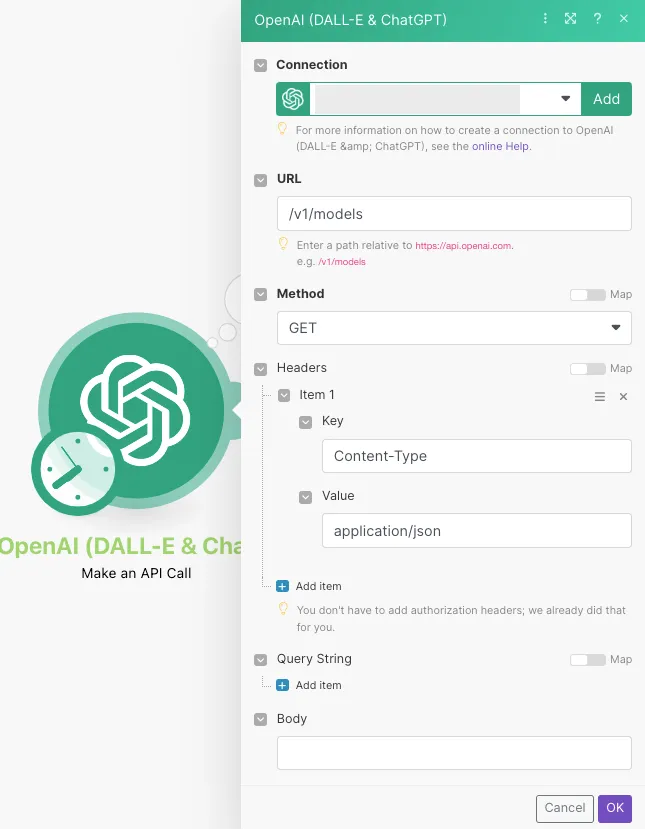
URL | Enter a path relative to https://api.openai.com. For example, /v1/models. |
Method | GET to retrieve information for an entry. POST to create a new entry. PUT to update/replace an existing entry. PATCH to make a partial entry update. DELETE to delete an entry. |
Headers | Enter the desired request headers. You don't have to add authorization headers; we already did that for you. |
Query String | Enter the request query string. |
Body | Enter the body content for your API call. |
Examples of Use - List Models
The following API call returns all pages from your OpenAI account.
URL: /v1/models
Method: GET
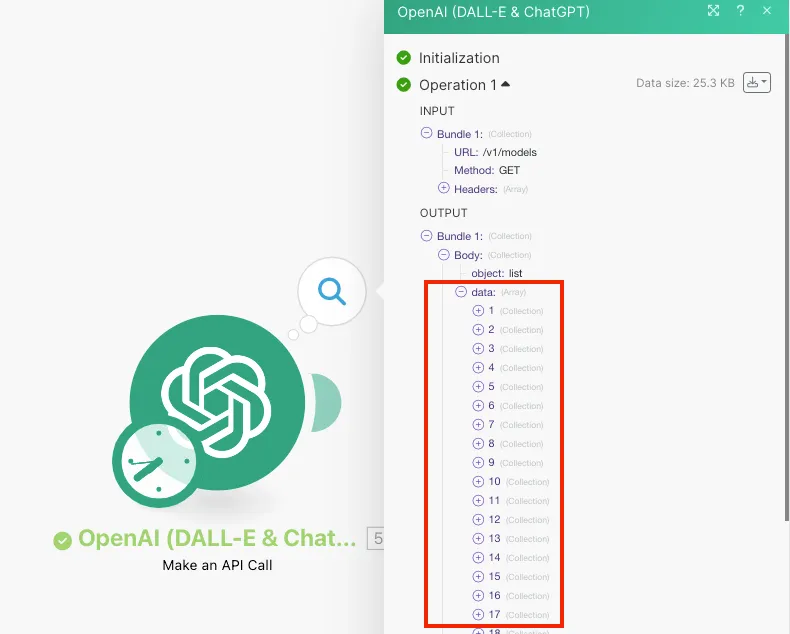
The search matches can be found in the module's Output under Bundle > Body > data.
In our example, 69 models were returned: