OpenAI (ChatGPT, Whisper)

| The OpenAI (ChatGPT, Whisper) app in Make connects you to the entire suite of OpenAI's AI products, such as:
|
|---|
Get started without an OpenAI account or API key
You can prompt AI without an OpenAI account or connection using the Simple text prompt module. Learn more in OpenAI modules.
The OpenAI API provides direct access to their new AI models.
With your OpenAI (ChatGPT, Whisper) modules in Make, you can:
- Create chat or prompt completions, edits, and moderations
- Generate images or videos
- Manage files, batches, and responses or call APIs for more advanced functions
Requirements
To use the OpenAI app in Make, you must have an OpenAI account and have credit in your OpenAI account. You must purchase credits on the OpenAI billing page.
Connect OpenAI and Make
To get started, you must first create a connection between OpenAI and Make, allowing the two services to communicate.
To create the connection, you need to:
Obtain your API key and Organization ID in OpenAI
Before you create the connection in Make, you should first obtain an API key and Organization ID in your OpenAI account.
To obtain the API key and Organization ID:
Log in to your OpenAI Platform (ChatGPT, Whisper) account.
Click the Settings icon in the top-right corner, then click API keys on the left sidebar.

Click Create new secret key, give the key a name (optional), and click Create secret key.
If you plan to use restricted permissions, make sure to enable the files:read permission. This is required for the Batch modules to work properly.
Copy the secret key, store it in a safe place, as you will not be able to view it again, and click Done.
Click the Settings icon to navigate to Organization settings, then copy your Organization ID to your clipboard.
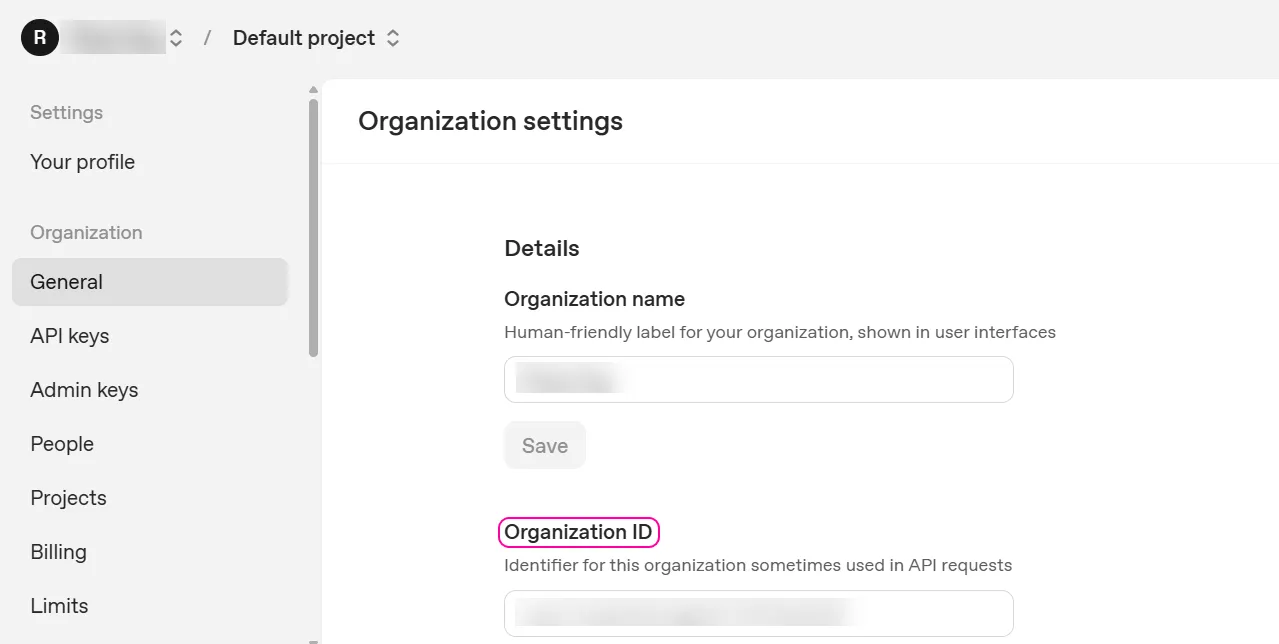
You'll use these values in the API Key and Organization ID connection fields in Make.
Create the connection in Make
Once you have your OpenAI API key and Organization ID, you're ready to create the connection in Make.
To create the connection:
Log in to your Make account, add an OpenAI (ChatGPT, Whisper) module to a scenario, and click Create a connection.
Optional: In the Connection name field, enter a name for the connection.
In the API Key field, enter the secret key copied from your OpenAI account.
In the Organization ID field, enter the organization ID copied from your OpenAI account.
Optional: Click Advanced settings to change the default region.
By default, the value is set to Global for all users. If you want to change it to the EU or US regions, make sure you have regional processing enabled for your account.
The region can be configured per project, so you might need to create multiple connections if you have OpenAI projects being processed in different regions. See the OpenAI Data Residency documentation for details.
Click Save.
If prompted, authenticate your account and confirm access.
You've successfully created the connection and can now use the OpenAI (ChatGPT, Whisper) app in your scenarios. If you want to make changes to your connection in the future, follow the steps here.
Verify your organization (reasoning models)
You must verify your organization in OpenAI if you:
- Use OpenAI reasoning models (GPT-5.2, GPT-5.1, GPT-5, GPT-5-mini, GPT-5-nano, O3, O4-mini, O3-mini) in your OpenAI app and enable Summary in the Reasoning field of Advanced settings.
- Use OpenAI reasoning models (GPT-5.2, GPT-5.1, GPT-5, GPT-5-mini, GPT-5-nano, O3, O4-mini, O3-mini) in Make AI agents.
To verify your organization in OpenAI:
Log in to your account on OpenAI Platform.
Click on the Settings icon in the top-right corner.
In Organization settings, click the Verify Organization button under Verifications.
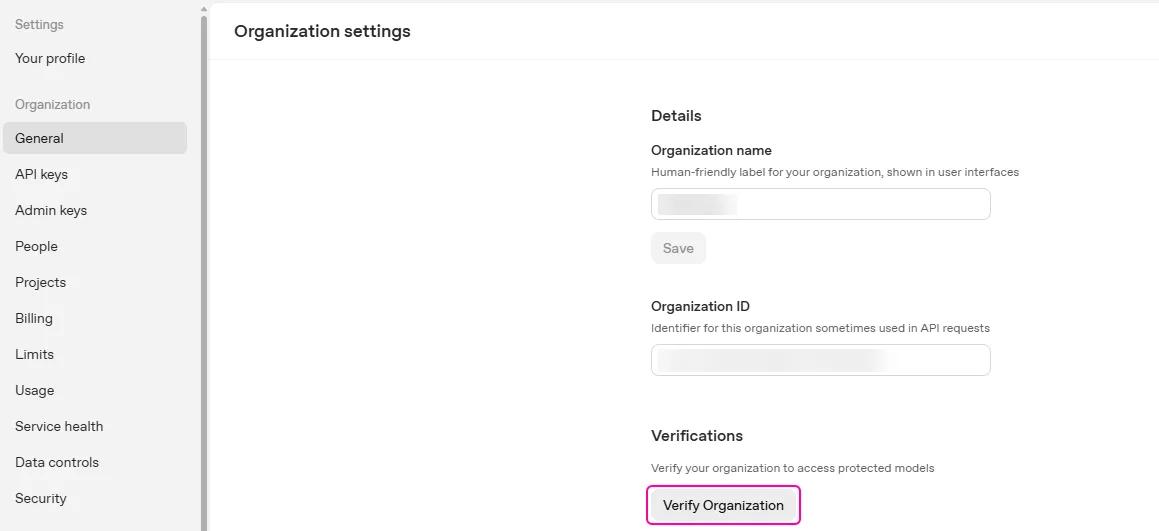
Once your organization is verified, no further action is needed in Make .
To learn more about organization verification in OpenAI, see OpenAI's documentation.
If you don’t verify your OpenAI organization, AI agents that use reasoning models won't run. You can alternatively switch to a non-reasoning model (GPT-4o, or GPT-4.1) at any time.
Templates
You can look for OpenAI (ChatGPT, Whisper) templates in Make's template gallery, where you'll find thousands of pre-created scenarios.