MySQL
| MySQL is an open-source relational database management system. With the MySQL app in Make, you can run your custom logic directly on your database server through stored procedures. Make loads the interface of input and output parameters and record sets dynamically so each parameter/value can be mapped individually. |
|---|
Requirements
To use the MySQL app in Make, you must have a MySQL server connection and a configured MySQL server.
Connect MySQL and Make
To get started, you must first create a connection between MySQL and Make, allowing the two services to communicate.
To create the connection, you need to:
Configure your MySQL server
Remote access must be allowed, and the CREATE ROUTINE privilege must be granted on the MySQL server.
Set the read access to MySQL tables
Make sure the account you are using to connect to your database has read access to the information_schema.tables, information_schema.columns, information_schema.routines, and information_schema.parameters tables.
Allow connections to and from Make IP addresses
Make will make connections to your database from the IP addresses listed in this article.
Our servers are set up with valid PTR records, so you can easily restrict access by allowing %.make.com.
Enable access on your firewall
Enable incoming TCP connections to port 3306 from source IP addresses.
Configure MySQL for remote access
Linux
Open the configuration file /etc/mysql/my.cnf
Comment outline bind-address = 127.0.0.1 (by adding a hash at the beginning of the line):
#bind-address = 127.0.0.1
Restart the MySQL daemon
Create and grant remote access to your MySQL account
Start the MySQL command-line interface:
mysql -u root -p
Execute these commands (with <database>, <user> and <password> replaced by actual values):
CREATE USER <user>@'%' IDENTIFIED BY <password> GRANT ALL PRIVILEGES ON <database>.* TO <user>@'%' IDENTIFIED BY <password> WITH GRANT OPTION; FLUSH PRIVILEGES;
Set the tolerance of non-interactive connection
Make processes scenarios transactionally. That's why all Make modules that support transactions have open transactions throughout the whole run of a scenario. Therefore, make sure that you have set a long enough time to tolerate non-interactive connections. This MySQL command will list the values:
SHOW VARIABLES LIKE 'wait_timeout';
See more information in the MySQL documentation on Server System Variables.
Create a connection in Make
Once you have configured your MySQL server, you're ready to create the connection in Make
To create the connection:
Log in to your Make account, add a MySQL module to your scenario, and click Create a connection.
Optional: In the Connection name field, enter a name for the connection.
Complete the following fields:
Field | Description |
|---|---|
Connection name | Enter the name of the new MySQL connection you want to establish. |
Host | Enter the address of the MySQL server. The MySQL server must be publicly accessible from the internet. If you want to use the database hosted on your local server, you'll need to specify your public IP address, and set the port forwarding on your router. Do not enter "localhost," or "127.0.0.1" in this field, as it will not work. |
Port | Enter the port number of the MySQL server. |
Database | Enter the database name if needed. This is required for the Execute a Query (advanced) module. |
User | Enter the MySQL server user name. |
Password | Enter the password. |
Allow insecure authentication | Enable this option to connect to MySQL instances that use the old authentication method (MySQL 4.0 and older). If needed, see additional information about Updating Old Authentication Protocol Passwords. |
Charset (optional) | Enter the MySQL character set for the connection, e.g., utf8. In this case, the utf8_general_ci MySQL collation is used. |
Self-signed certificate (optional) | Upload your certificate (P12, PFX, or PEM file) if you want to use TLS using your self-signed certificate. If you're using the client-side certificate authorization, you can enter your CA certificate here. Make does not retain or store any data (files, passwords) you provide. File and password are only used to extract a private key/certificate. |
Client Private Key (optional) | Upload the private key to use the client-side certificate authorization. Make does not retain or store any data (files, passwords) you provide. File and password are only used to extract a private key/certificate. |
Client Certificate (optional) | Upload your certificate if you want to use client-side certificate authorization. Make does not retain or store any data (files, passwords) you provide. File and password are only used to extract a private key/certificate. |
Click Save.
If prompted, authenticate your account and confirm access.
You've successfully created the connection and can now use the MySQL app in your scenarios. If you want to make changes to your connection in the future, follow the steps here.
MySQL modules
After connecting to the MySQL app, you can use the following types of modules to build your scenarios.
Actions
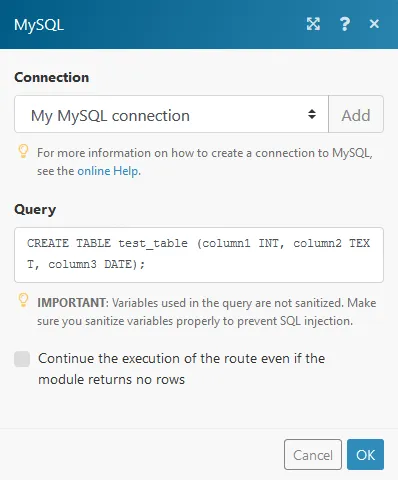
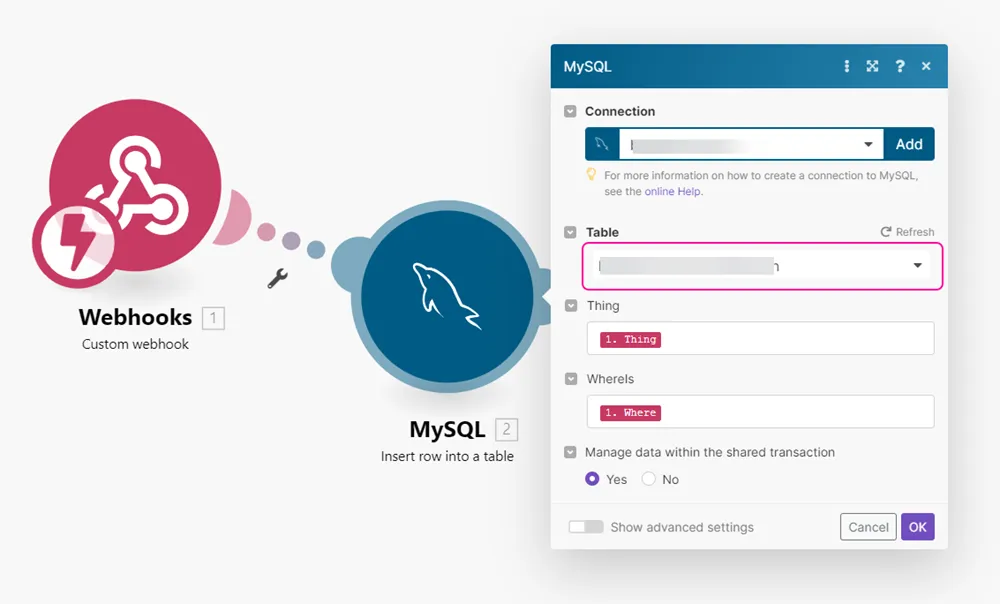
Searches
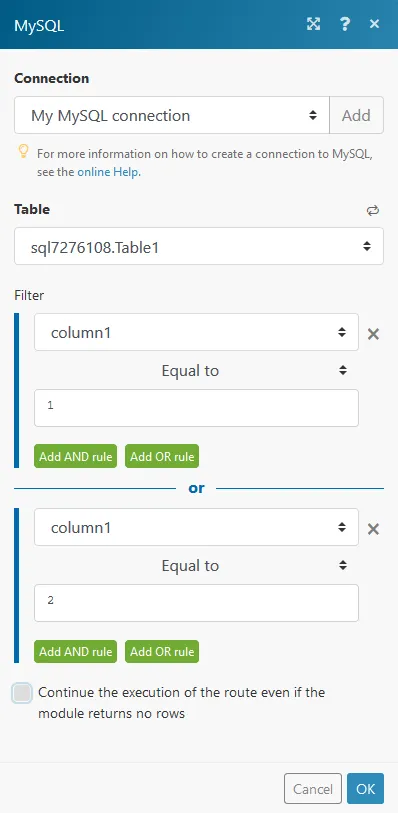
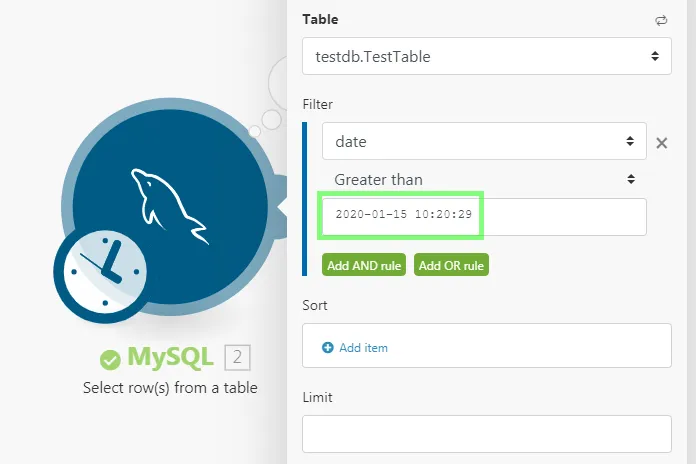
Iterators
Troubleshooting MySQL
