Google Cloud Vision
| With the Google Cloud Vision app in Make, you can run a localizer for object detection within an image and iterate the result array. |
|---|
Requirements
To use the Google Cloud Vision app in Make, you must have a Google Cloud Vision AI account with billing enabled.
Connect Google Cloud Vision and Make
To get started, you must first create a connection between Google Cloud Vision and Make, allowing the two services to communicate.
To create the connection, you need to:
Create and configure a Google Cloud Platform project for Google Cloud Vision
Before you establish the connection in Make, you must create and configure a project in the Google Cloud Platform to obtain your API key.
Your Google account must have Cloud Billing set up in order to enable the required APIs in your project. For information regarding how to create and manage Cloud Billing, see Google's Manage your Cloud Billing account guide.
Create a Google Cloud Platform project for Google Cloud Vision
To create a Google Cloud Platform project:
Log in to the Google Cloud Platform using your Google credentials.
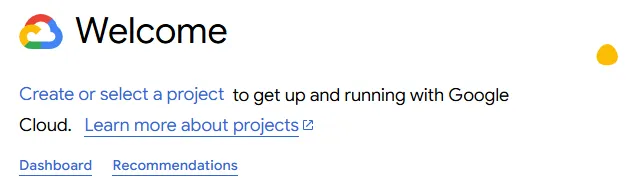
On the welcome page, click Create or select a project > New project. If you already have a project, proceed to the step 5.
Enter a Project name and select the Location for your project.
Click Create.
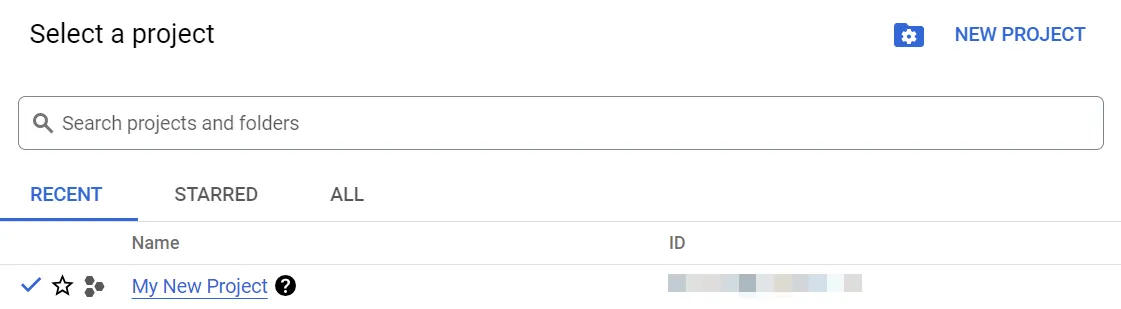
In the top menu, check if your new project is selected in the Select a project dropdown. If not, select the project you just created.
To create a new project or work in the existing one, you need to have the serviceusage.services.enable permission. If you don’t have this permission, ask the Google Cloud Platform Project Owner or Project IAM Admin to grant it to you.
Enable APIs for Google Cloud Vision
To enable the required API:
Open the left navigation menu and go to APIs & Services > Library.
Search for the following API: Cloud Vision API.
Click Cloud Vision API, then click Enable. If you see the Manage button instead of the Enable button, you can proceed to the next step: the API is already enabled.
Obtain your Google Cloud Vision API key
To obtain your API key:
In the left sidebar, click APIs & Services > Credentials.
Click + Create Credentials > API key.
Copy Your API key value shown and store it in a safe place.
You will use this value in the API Key field in Make.
Create the connection with Google Cloud Vision in Make
To create the connection:
Log in to your Make account, add a Google Cloud Vision module to your scenario, and click Create a connection.
Optional: In the Connection name field, enter a name for the connection.
In the API Key field, enter the value you copied in the Obtain your Google Cloud Vision API key section above.
Click Sign in with Google.
If prompted, authenticate your account and confirm access.
You've successfully created the connection and can now use the Google Cloud Vision app in your scenarios. If you want to make changes to your connection in the future, follow the steps here.
Google Cloud Vision modules
After connecting to the Google Cloud Vision app, you can use the following types of modules to build your scenarios.
Templates
You can look for Google Cloud Vision templates in Make's template gallery, where you'll find thousands of pre-created scenarios.