Google Ads Lead Forms
| With the Google Ads Lead Forms app in Make, you can watch lead forms in your Google Ads Lead Forms account. |
|---|
Requirements
To use the Google Ads Lead Forms app in Make, you must have a Google Ads account.
Make's use and transfer of information received from Google APIs to any other app will adhere to Google API Services User Data Policy.
Connect Google Ads Lead Forms and Make
To create the connection:
Log in to your Make account, add a Google Ads Lead Forms module to your scenario, and click Create a connection.
Optional: In the Connection name field, enter a name for the connection.
In the Customer ID field, enter your customer ID.
You will find your Customer ID by choosing an account in the Google Ads UI after signing in or clicking on your profile image at the top-right corner of the page. For example: 123-456-7890.
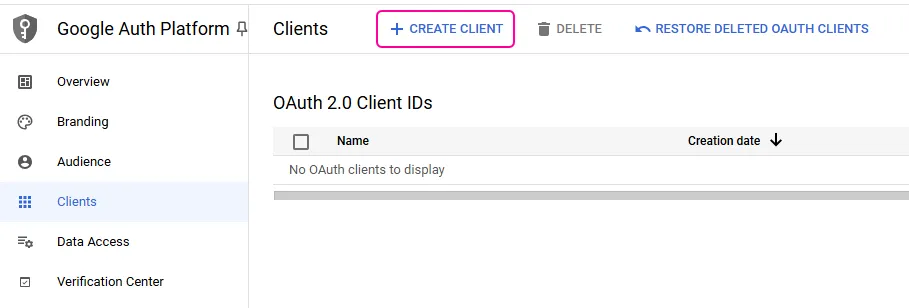
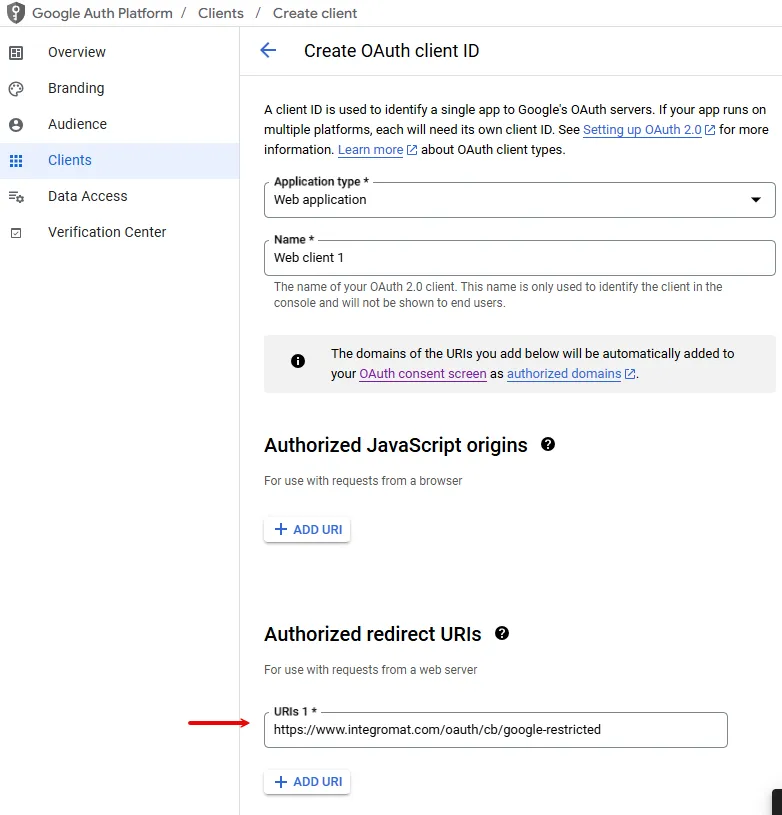
Optional: Switch on Show advanced settings and enter your Google Ads Lead Forms client credentials. For more information, see the Create and configure a Google Cloud Platform project below.
Click Sign in with Google.
If prompted, authenticate your account and confirm access.
You've successfully created the connection and can now use the Google Ads Lead Forms app in your scenarios. If you want to make changes to your connection in the future, follow the steps here.

Google Ads Lead Forms modules
After connecting to the Google Ads Lead Forms app, you can use the following types of modules to build your scenarios.
Some adblocking browser plugins could block the Google Ads Leald Forms modules. It is recommended to disable the plugins if you encounter a problem loading a module.
Templates
You can look for Google Ads Lead Forms templates in Make's template gallery, where you'll find thousands of pre-created scenarios.