Cyfe
The Cyfe module allows you to create and analyze metrics to study the performance of your domain traffic in your Cyfe account.
Getting Started with Cyfe
Prerequisites
- A Cyfe account
In order to use Cyfe with Make, it is necessary to have a Cyfe account. If you do not have one, you can create a Cyfe account at cyfe.com.
There is no connection required for pushing value to your Cyfe account from Make. You can directly use the widget's API End Point and push a value from Make.
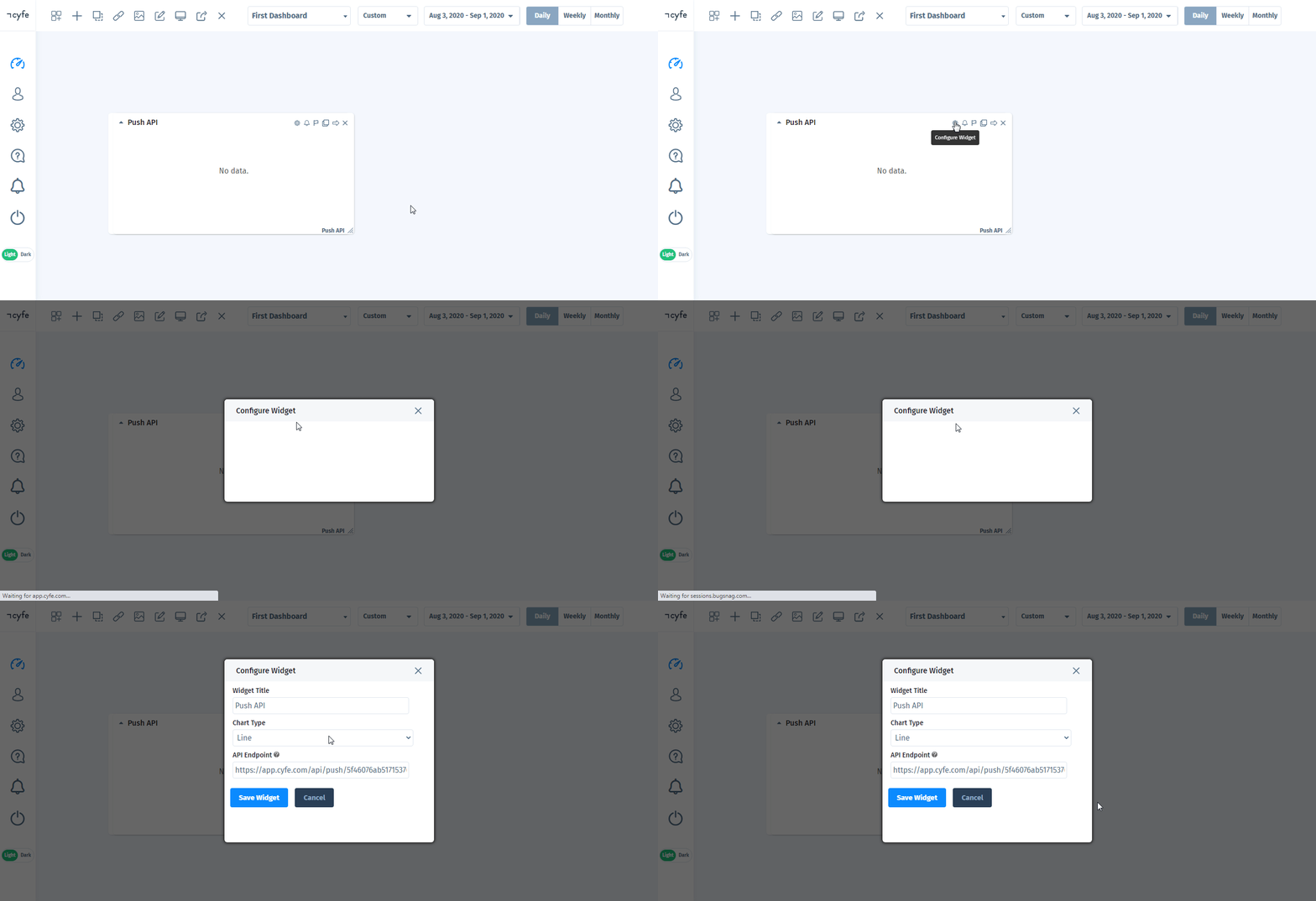
Accessing Cyfe Widget's API Endpoint
- Login to your Cyfe account.
On the widget for which you want to push value, click the Setting icon, and copy the API Endpoint value to your clipboard.
Actions
Push Value
Pushes your data into a push API widget.
API Endpoint | Enter the API Endpoint of the widget whose event data you want to push. See Accessing Cyfe Widget's API Endpoint above. |
|---|---|
Metric | Enter the metric to which you want to push the value. |
Date | Enter the date in YYYY-MM-DD format. |
Value | Enter a JSON string containing the data you want to push. |
Replace | Select whether to replace the value if during subsequent calls a data is pushed in with the same element name, existing values are added to the new value by default:
|
Color | Select the color for the metric. |
Cumulative | Select whether you would like to see cumulate values for the specified metrics in the widget header:
|
Average | Select whether to display averages for the specified metrics in the widget header:
|
Reverse | Select whether high values are good or bad for particular metrics:
For example, large number of unlikes count on Facebook is bad. |
Reverse Graph | Select whether you want to display a graph upside down:
For example, when displaying ranking information. |
Y-axis | By default, each metric you add to the widget falls on its own y-axis. You can enable a single y-axis across all your metrics in the widget thereby syncing the data. Choose the value true for all metrics to sync them. |
Y-axis Minimum | Enter the minimum value of the Y-axis. |
Y-axis Maximum | Enter the maximum value of the Y-axis. |
Show Y-axis | Select whether to turn on the Y-axis for the metric:
|
Show Labels | Select whether to turn on the data labels for the metric:
|