CloudConvert modules
After connecting to the CloudConvert app, you can use the following modules to build your scenarios.
Common Tasks
Converts a specified file to the selected file format.
Connection | |
|---|---|
Input File | Select whether you want to upload a file using Make or provide the URL the file will be uploaded from. |
Upload a File | Enter the source file by adding the file name and file data manually or by mapping the file from a previous module. E.g. Dropbox > Get a File. Data Enter or map the file data. File Name Enter the file name including the file extension. E.g. test.txt |
Import a File from URL | URL Enter the URL of the file you want to convert. Headers Define request headers (optional). Useful, for example, when the specified URL requires the authorization. |
Format | Select whether you want to specify the input format of the file you want to convert. If not specified, the extension of the input file is used as the input format. |
Input Format | Select the current format of the file. |
Output Format | Select the target file format you want to convert the file to. |
File Name | Choose a filename (including extension) for the target output file. |
Conversion and engine specific options | Specify conversion and engine specific options. To view available options, please visit their API documentation and select the input_format and output_format. |
Download a file | Enable this option to include also file data in the module's output. |
Captures a specified website and saves it in PDF, JPG, or PNG format.
Connection | |
|---|---|
URL | Enter the URL of the website you want to capture. |
Output Format | Select whether you want to save the captured website in PNG, JPG, or PDF format. |
File Name | Enter a filename (including extension) for the target output file. |
Headers | Define request headers (optional). Useful, for example, when the specified URL requires the authorization. |
Conversion and engine specific options | Specify conversion and engine specific options. To view available options, please visit their API documentation and select the input_format and output_format. |
Download a file | Enable this option to include also file data in the module's output. |
Optimizes and compresses a file. Currently supported formats are PDF, PNG and JPG.
Connection | |
|---|---|
Input File | Select whether you want to upload a file using Make or provide the URL the file will be uploaded from. |
Upload a File | Enter the source file by adding the file name and file data manually or by mapping the file from a previous module. E.g. Dropbox > Get a File. Data Enter or map the file data. File Name Enter the file name including the file extension. E.g. test.txt |
Import a file from URL | URL Enter the URL of the file you want to optimize. Headers Define request headers (optional). Useful, for example, when the specified URL requires the authorization. |
Optimization for | Select the optimization profile for specific target needs. web Optimization for the web (Default)
print Optimization for print
archive Optimization for archiving purposes
scanned images Optimization for scanned images
maximal size reduction Optimization for maximal size reduction
|
Input format | Select the format of the input file you want to optimize. |
File name | Enter the file name (including extension) for the target output file. |
Conversion and engine specific options | Specify conversion and engine specific options. To view available options, please visit their API documentation and select the output_format. |
Download a file | Enable this option to include also file data in the module's output. |
Enables you to add one or multiple files to the ZIP, RAR, 7Z, TAR, TAR.GZ or TAR.BZ2 archive.
Connection | |
|---|---|
Input Files | Specify files you want to add to the archive. Upload a File Enter the source file by adding the file name and file data manually or by mapping the file from a previous module. E.g. Dropbox > Get a File
Import a file from URL
|
Output Format | Select the target format of the archived file. |
File name | Enter the file name (including extension) for the target output file. |
Conversion and engine specific options | Specify conversion and engine specific options. To view available options, please visit their API documentation and select the output_format. |
Download a File | Enable this option to include also file data in the module's output. |
Merges at least two files into one PDF. If input files are not PDFs yet, they are automatically converted to PDF.
Connection | |
|---|---|
Input Files | Specify files you want to add to the archive. Upload a File Enter the source file by adding the file name and file data manually or by mapping the file from a previous module. E.g. Dropbox > Get a File
Import a file from URL
|
Output Format | Select the target format. |
File name | Enter the file name (including extension) for the target output file. |
Conversion and engine specific options | Specify conversion and engine specific options. To view available options, please visit their API documentation and select the output_format. |
Download a File | Enable this option to include also file data in the module's output. |
Jobs
Triggers when the job or tasktask is created, has finished, or has failed in your account.
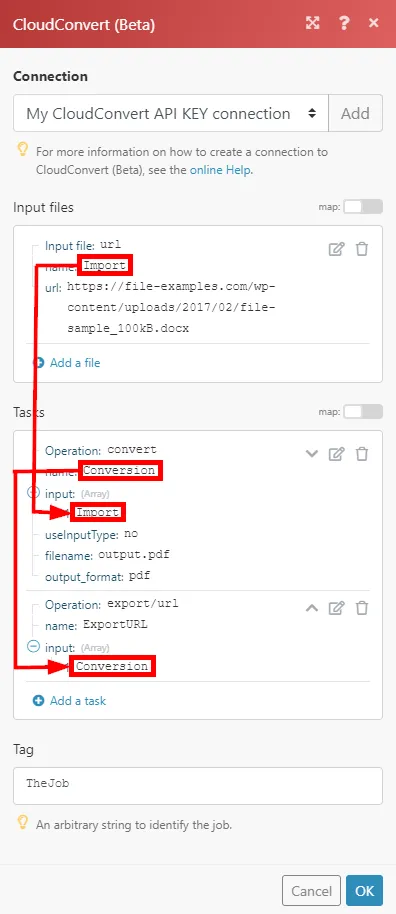
The job created by the Create a Job (advanced) module consists of several tasks.
The New Job Event trigger is also triggered when an individual taskindividual task is created, has finished, or has failed.
Webhhook name | Enter the webhook name. E.g. Document Conversion Finished |
|---|---|
Connection | |
Event | Select whether the module is triggered when the job/task is created, has finished, or has failed. |
This module performs a job (a job can be one or multiple tasks that are identified in the Name field and linked between each other using the Input field).
For further processing of the finished job created with the Create a Job module, please use the New Job EventNew Job Event (job.finished) module in another scenario.
Connection | |
|---|---|
Input Files | Add the files you want to use within the job. Upload a File Enter the source file by adding the file name and file data manually or by mapping the file from a previous module. E.g. Dropbox > Get a File.
Import a file from URL
|
Tasks | Add tasks that will be performed within the job. Please find the descriptions of the operations' fields in the corresponding section.
|
Tag | An arbitrary string to identify the job. Does not have any effect and can be used to associate the job with an ID. |
If working with the Array Aggregator (e.g. you have many files in different formats to convert), use the I don't know the input format option in the Add a task dialog. Otherwise the error is returned.
Linking tasks within the job (name > input, name > input,...):
Retrieves all jobs that have been run in your account.
Connection | |
|---|---|
Status | Select the job status to filter returned jobs by. |
Limit | Set the number of returned jobs Make will return during one execution cycle. |
Retrieves job details.
Connection | |
|---|---|
Job ID | Enter (map) the ID of the job you want to retrieve details about. |
Deletes a job, including all tasks and data.
Jobs are deleted automatically 24 hours after they have ended.
Connection | |
|---|---|
Job ID | Enter (map) the ID of the job you want to delete. |
Tasks
Retrieves task details.
Connection | |
|---|---|
Task ID | Enter (map) the ID of the task you want to retrieve details about. |
Retrieves file name and file data from the specified task.
Connection | |
|---|---|
Task ID | Enter (map) the ID of the task you want to download the file from. |
Retrieves all tasks in your account based on filter settings.
Connection | |
|---|---|
Status | Select the task status to filter returned tasks by. |
Job ID | Enter (map) the Job ID to return only tasks within the specified job. |
Operation | Enter the operation type to return only tasks with the specified operation. Use the List Possible Operations module to retrieve operations. |
Limit | Set the number of returned tasks Make will return during one execution cycle. |
Creates a new task, based on the settings (payload) of another task.
Connection | |
|---|---|
Task ID | Enter (map) the ID of the task you want to create a new task from. |
Cancels a task that has a status of waiting or processing.
Connection | |
|---|---|
Task ID | Enter (map) the ID of the task you want to cancel. |
Delete a task, including all data.
Tasks are deleted automatically 24 hours after they have ended.
Connection | |
|---|---|
Task ID | Enter (map) the ID of the task you want to delete. |
Other
Retrieves authenticated account details (including credits - remaining conversion minutes).
Allows you to perform a custom API call.
Connection | |
|---|---|
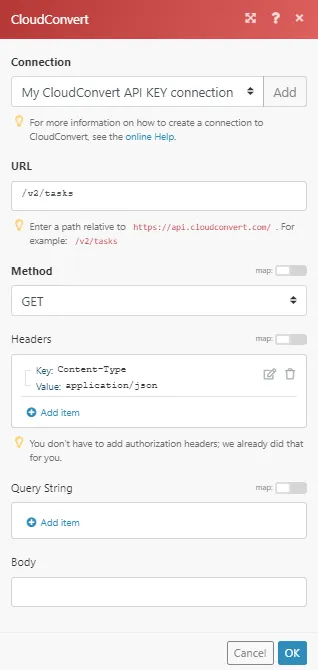
URL | Enter a path relative to https://api.cloudconvert.com/. For example: /v2/tasks For the list of available endpoints, refer to the CloudConvert API v2 Documentation. |
Method | Select the HTTP method you want to use:
|
Headers | Enter the desired request headers. You don't have to add authorization headers; we already did that for you. |
Query String | Enter the request query string. |
Body | Enter the body content for your API call. |
Example of Use - List Tasks
The following API call returns all tasks from your CloudFront account:
URL:
/v2/tasks
Method:
GET
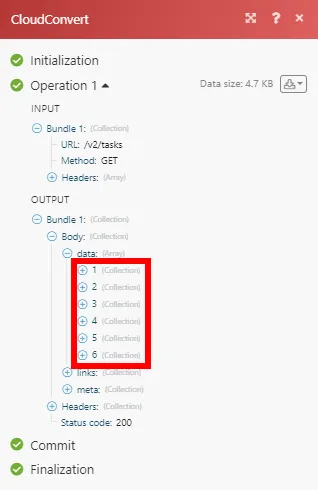
Matches of the search can be found in the module's Output under Bundle > Body > data.
In our example, 6 tasks were returned: