Google Gemini AI

With the Google Gemini AI app in Make, you can create chat completions, make API calls, and upload files in your Google Gemini account.
You can send prompts without a Gemini account or connection in Make using the Simple text prompt module. Learn more in the modules section.
Requirements
To use the Google Gemini AI app in Make, you must have a Google account and an existing Google Cloud project in the Google Cloud Platform. When you have a created Google Cloud project, you must obtain an API key in Google AI Studio.
Connect Google Gemini AI and Make
To get started, you must first create a connection between Google Gemini AI and Make, allowing the two services to communicate.
To create the connection, you need to:
Create a Google Cloud Platform project for Google Gemini AI
Once you have created a Google Cloud Platform project, and obtained your API key, you're ready to create the connection in Make.
To create a new project or work in the existing one, you need to have the serviceusage.services.enable permission. If you don’t have this permission, ask the Google Cloud Platform Project Owner or Project IAM Admin to grant it to you.
Log in to the Google Cloud Platform using your Google credentials.
On the welcome page, click Create or select a project > New project.
Enter a Project name and select the Location for your project.
Click Create.
In the top menu, check if your new project is selected in the Select a project dropdown. If not, select the project you just created.
Once you create your Google Cloud Platform project, you can obtain your API key in Google AI Studio.
Obtain your API key in Google AI Studio
Before you create the connection in Make, you should first obtain an API key in your Google Gemini account.
To obtain the API key:
Log in to your Google AI Studio.
Click Get API key.
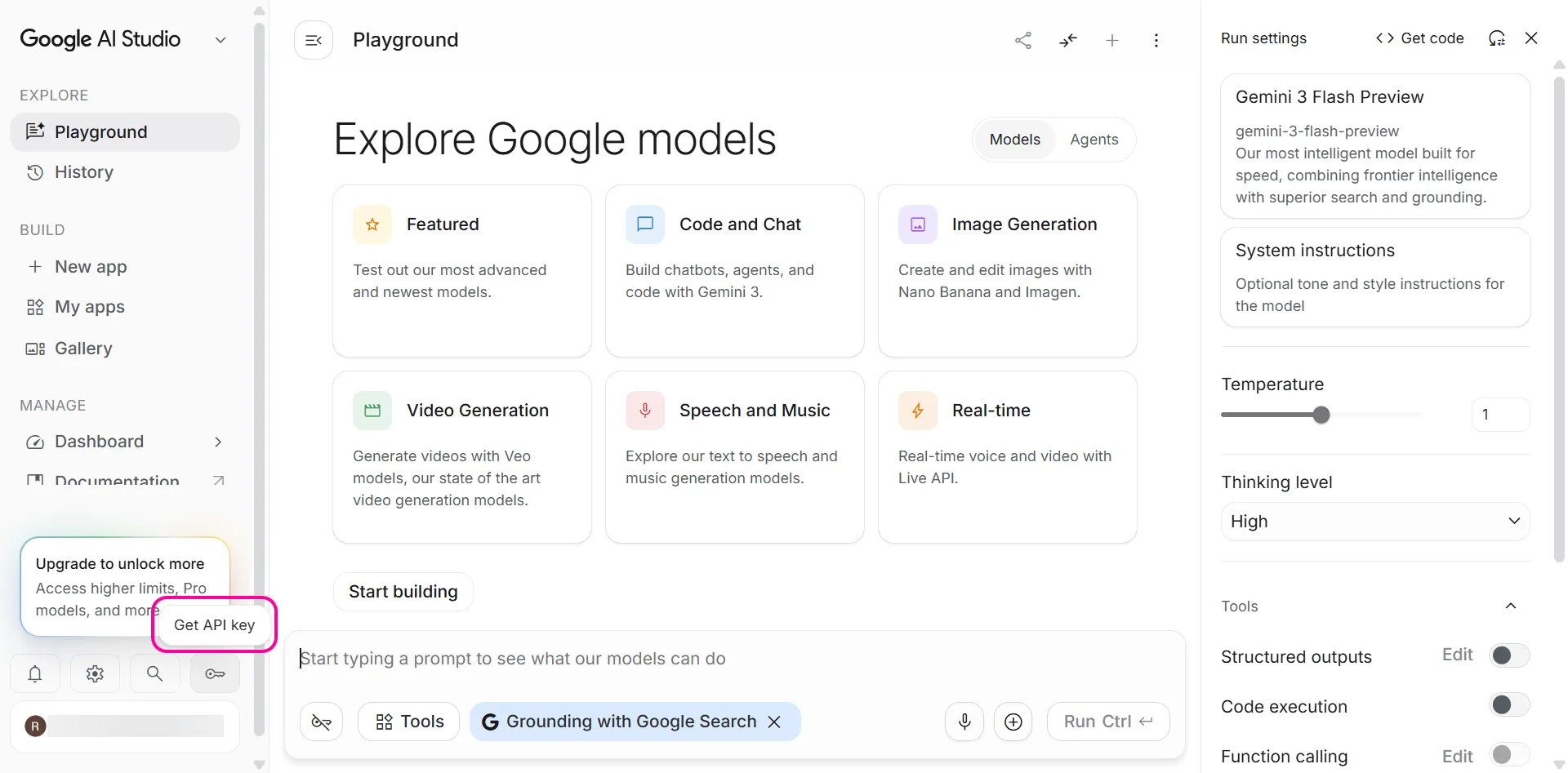
Click Create API key.
Name your API key, and select an existing Gemini project or create a new one.
Click Create key.
Copy the API Key value and store it in a safe place.
You'll use this value in the API Key connection field in Make.
Create the connection in Make
Once you have your Google AI Studio API key, you're ready to create the connection in Make.
To create the connection:
Log in to your Make account, add an Google Gemini AI module to your scenario, and click Create a connection.
Optional: In the Connection name field, enter a name for the connection.
In the API Key field, enter the API key you copied from your Google AI Studio account.
Click Save.
If prompted, authenticate your account and confirm access.
You've successfully created the connection and can now use the Google Gemini AI app in your scenarios. If you want to make changes to your connection in the future, follow the steps here.
Google Gemini AI modules
You can use the following Google Gemini AI modules to build your scenarios. The Simple text prompt module requires no setup, while other modules require connecting to the Google Gemini AI app.
Templates
You can look for Google Gemini AI templates in Make's template gallery, where you'll find thousands of pre-created scenarios.